How to total amounts by category without repeating SUMIF formulas
Group repeated categories and calculate their totals and record counts together. Check the overall sum and understand how blank amounts affect the result.
Use Summarize in JOIN SHEET's Refine results to group a category and sum its amounts. Add Count in the same summary to see how many records contributed to each group. You do not need a separate formula for every category in this workflow.
Repeated category names are not necessarily duplicates
A customer can place several orders, and a project can have several expenses. Removing all but one row per category would discard legitimate amounts. First confirm that each record represents a separate event.
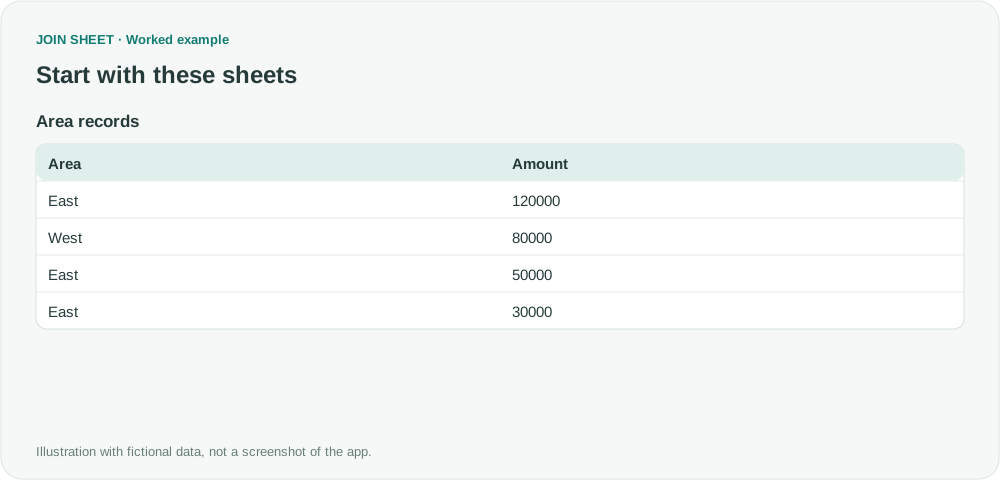
This fictional example totals four records by Area, using the same amount unit throughout.
| Area | Amount |
|---|---|
| East | 120000 |
| West | 80000 |
| East | 50000 |
| East | 30000 |
Calculate a total and count together
- Load the sheet, select it as the result source and open Refine results.
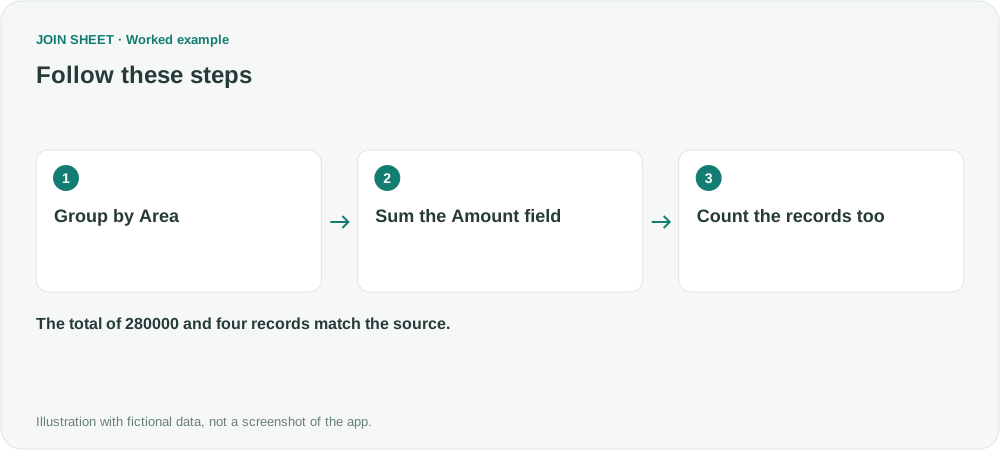
- Add Summarize and select Area under Group by. Do not include Amount in the grouping fields.
- Set the first Summary method to Sum, choose Amount and name the output Total amount.
- Use Add summary within the same step, select Count and name it Records. Choose Apply.
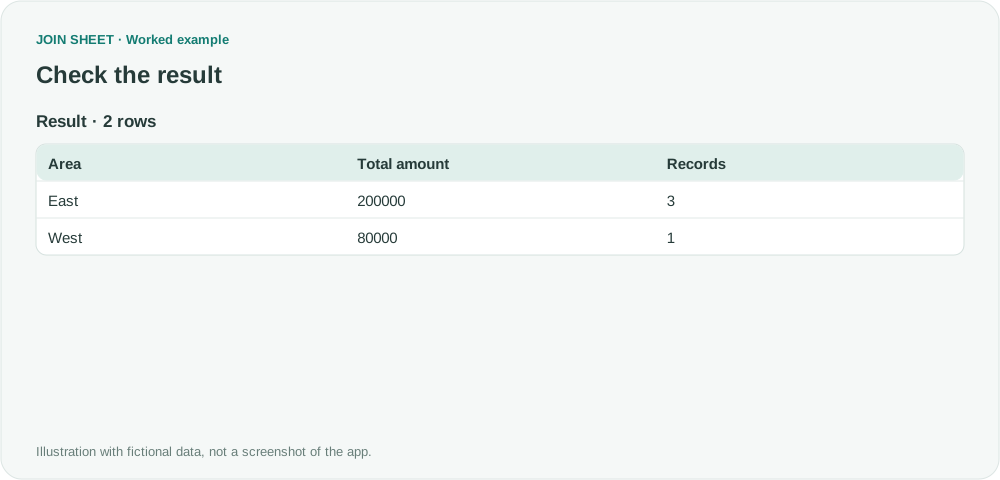
Expected result: East totals 200000
| Area | Total amount | Records |
|---|---|---|
| East | 200000 | 3 |
| West | 80000 | 1 |
East is 120000 + 50000 + 30000. The two totals sum to 280000, and the counts sum to 4, matching the source.
For a product breakdown within each area, include both Area and Product under Group by. Leaving grouping empty instead produces one overall summary. To show the largest total first, reopen Refine results, add a descending Sort on Total amount after the summary, then Apply.
Are blank amounts included in the count?
Count counts all records in the group, including records with a blank amount. Sum and Average exclude blanks and values that cannot be used numerically. If a total is unexpectedly low, inspect numeric types and source values before assuming rows disappeared.
Summarizing retains only grouping fields and summary outputs, not every transaction number or note. Preserve the source for detail. Excel PivotTables and SUMIF are also suitable options; choose according to the workflow you already maintain.
Spend less time on repetitive work
Connect and compare sheets to get the results you need.
This walkthrough uses the Pro plan.
Start with JOIN SHEET ↗Use a desktop computer for Excel and CSV work. Opens in a new tab without replacing your current work.
Example last verified:
Sources
Discussion about summing numbers for repeated values — Reddit r/excel
The area data and verified expected totals are an independent example, not the original author's data or a JOIN SHEET testimonial.