How to find missing values between two Excel lists
Compare two lists without sorting them first. Find product codes in both sheets or in only one, then check whether a missing match needs action.
To find values missing from either Excel list, connect the two code columns and choose Compare values in JOIN SHEET. The result separates values found in both sheets from values found in only one. The lists do not need to be in the same order.
Look across the list, not at the same cell position
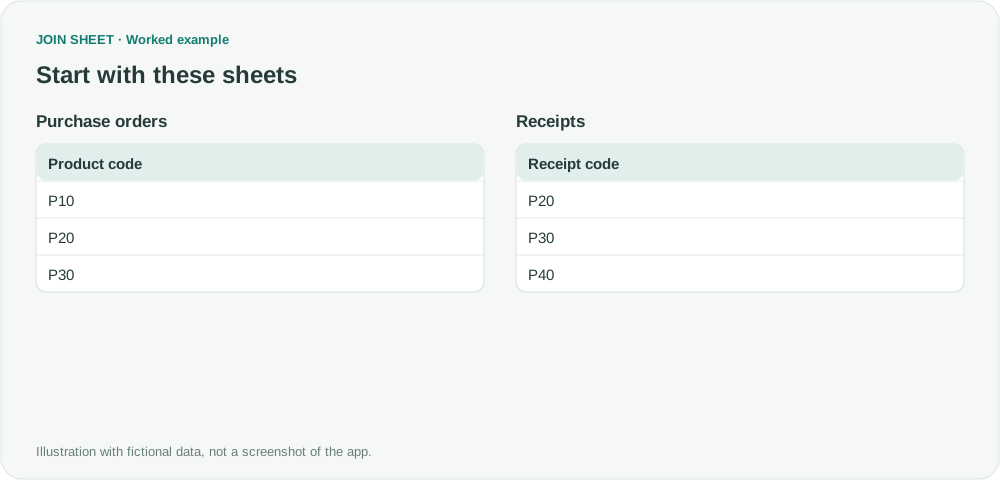
Suppose Purchase orders contains P10, P20 and P30, while Receipts contains P20, P30 and P40. Comparing the first cell in each sheet tells you that P10 differs from P20. It does not tell you whether P10 appears elsewhere in the receipts.
This fictional example checks whether each code appears in the other list. It does not compare quantities or confirm that goods were physically delivered. Excel formulas and conditional formatting can also solve this problem; the approach here produces a separate result table through visual connections.
Compare the two code columns
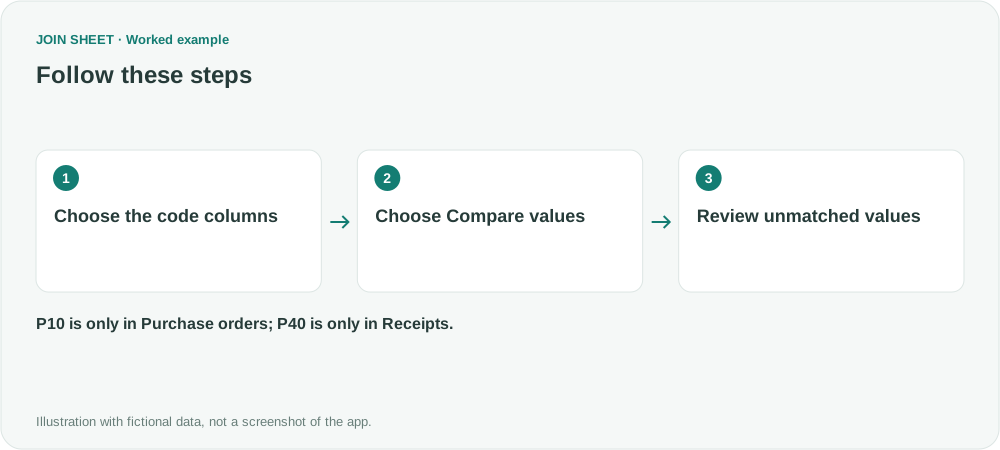
- Choose Add files in the dashboard and load both sheets. Alternatively, copy data including its headers and use Paste copied data.
- Drag the connection point beside Product code in Purchase orders to Receipt code in Receipts. The column names can differ.
- In Choose how to connect, select Compare values. Do not add a separate join key for this list-membership check.
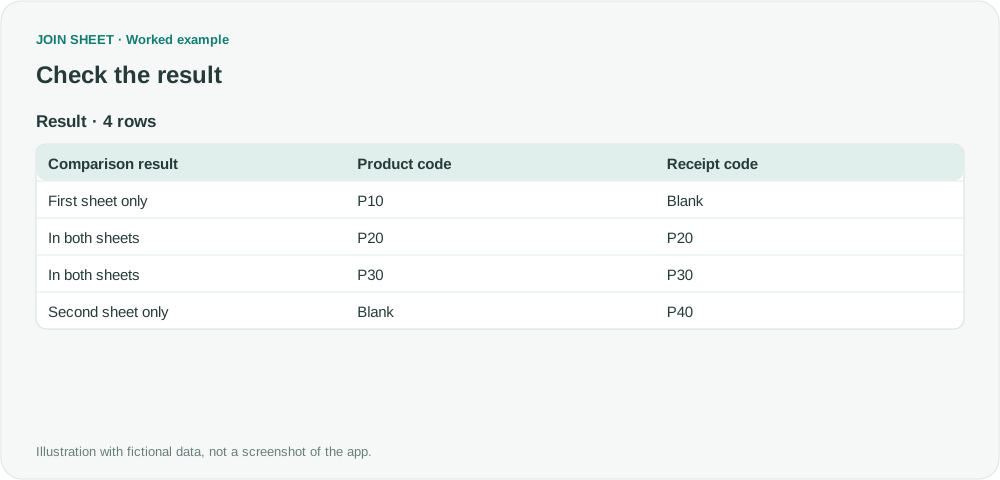
- Read Comparison result alongside the two code columns in Result preview.
Check the four expected results
| Code | Comparison result | What to investigate |
|---|---|---|
| P10 | First sheet only | No matching code in Receipts |
| P20 | In both sheets | Present in both lists |
| P30 | In both sheets | Present in both lists |
| P40 | Second sheet only | No matching code in Purchase orders |
Check that Purchase orders is the first sheet before interpreting the labels. A missing match is not automatically an error: the delivery may still be due, or the files may cover different dates.
Does this also check repeated codes or changed prices?
Repeated values affect the comparison, so presence in both sheets does not prove equal transaction counts. It also does not prove equal quantities.
For price changes, first connect a stable product code as the join key, then compare the price columns. See how to compare changed values by ID. Once you have checked the result, you can save the full result to Excel.
Spend less time on repetitive work
Connect and compare sheets to get the results you need.
This walkthrough uses the Pro plan.
Start with JOIN SHEET ↗Use a desktop computer for Excel and CSV work. Opens in a new tab without replacing your current work.
Example last verified:
Sources
How to compare two columns and find differences in Excel? — Super User
The public question informed the problem selection. The data and JOIN SHEET walkthrough are independent examples, not the question author's files or a customer testimonial.