How to compare changed values in Excel files with different row orders
Match records by customer ID before comparing their values. Identify changed, unchanged, added and missing records without relying on row positions.
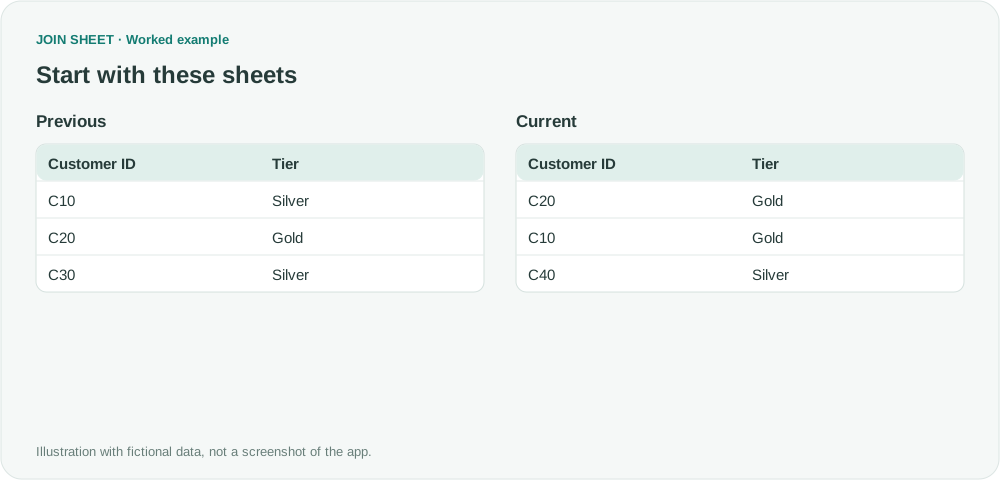
Match the same records by a stable ID, then compare the fields that may have changed. Comparing cells in the same position can mistake a new sort order for a data change. In JOIN SHEET, join the IDs and use Compare values for fields such as Tier or Amount.
Separate changed values from added and missing records
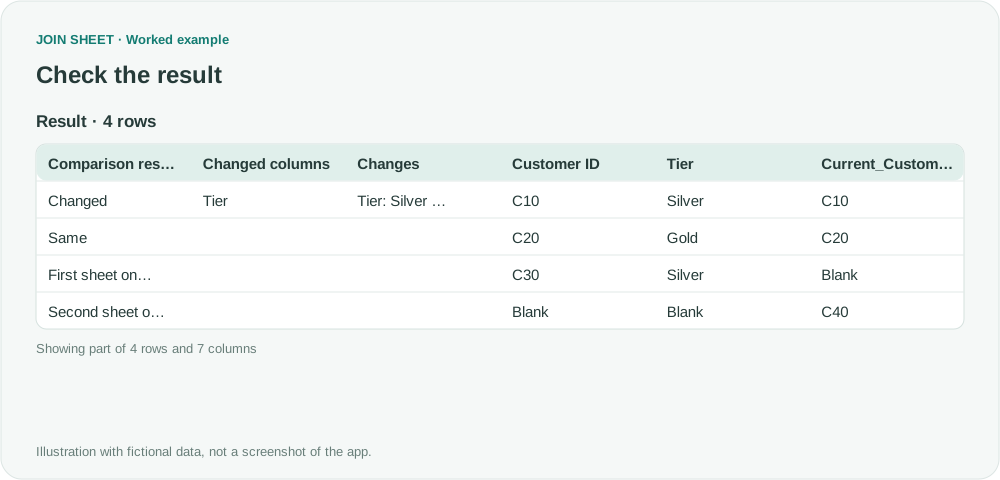
The fictional Previous sheet contains C10, C20 and C30. Current contains C20, C10 and C40. C10 changes from Silver to Gold; C20 remains Gold. C30 is absent from Current, and C40 is new.
This requires two different checks: which customer is the same person, and whether that customer's tier has changed. Comparing Tier alone cannot establish identity.
Connect the IDs and compare the tiers
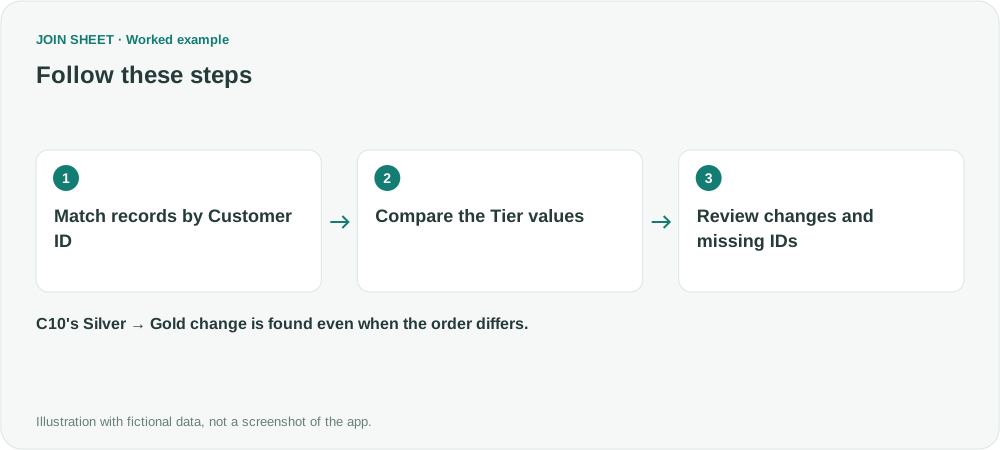
- Load Previous as the first sheet and Current as the second.
- Connect their Customer ID columns and choose All rows from both sheets so added and missing customers remain visible.
- Connect the Tier columns. Open the grouped key menu on the line and use the VS button beside Tier ↔ Tier to change that pair to Compare values.
- Check Comparison result, Changed columns and Changes in Result preview.
- For several columns with matching names, use Auto-compare. It excludes the join keys. Connect differently named comparison columns manually.
Expected result
| Customer ID | Comparison result | Meaning |
|---|---|---|
| C10 | Changed | Tier changed from Silver to Gold |
| C20 | Same | The compared tier is still Gold |
| C30 | First sheet only | Missing from Current |
| C40 | Second sheet only | Missing from Previous |
There are four rows. C20's new position does not count as a change. Same means the fields selected for comparison are equal, not that every unselected column is identical.
What if the same customer ID appears more than once?
The comparison needs a unique key combination within each sheet. For branch-specific customer records, add Branch to the join keys. JOIN SHEET does not arbitrarily choose the first row when the selected keys cannot distinguish records.
To keep only changes, add a filter on Comparison result in Refine results and select Changed, then Apply. Check a few IDs against the source before saving the full result.
Spend less time on repetitive work
Connect and compare sheets to get the results you need.
This walkthrough uses the Pro plan.
Start with JOIN SHEET ↗Use a desktop computer for Excel and CSV work. Opens in a new tab without replacing your current work.
Example last verified:
Sources
How to compare two lists: missing values and different values — Reddit r/excel
The customer tiers and results are independently constructed examples. The source question is not a JOIN SHEET customer story.