Why do identical-looking codes fail to match? Check hidden spaces
Match codes with leading or trailing spaces without rewriting the originals. See what Ignore surrounding spaces fixes and what still needs source cleanup.
If two codes look identical but do not match, check for leading or trailing spaces. In JOIN SHEET, enable Ignore surrounding spaces under Key value settings to ignore those spaces when matching text join keys. The original values remain unchanged.
Why retyping a code can appear to fix it
Copied or exported data can contain ordinary spaces or non-breaking spaces that are difficult to see. Retyping a code may omit the hidden character, producing a value that finally matches. It is worth identifying the difference instead of correcting each failed lookup manually.
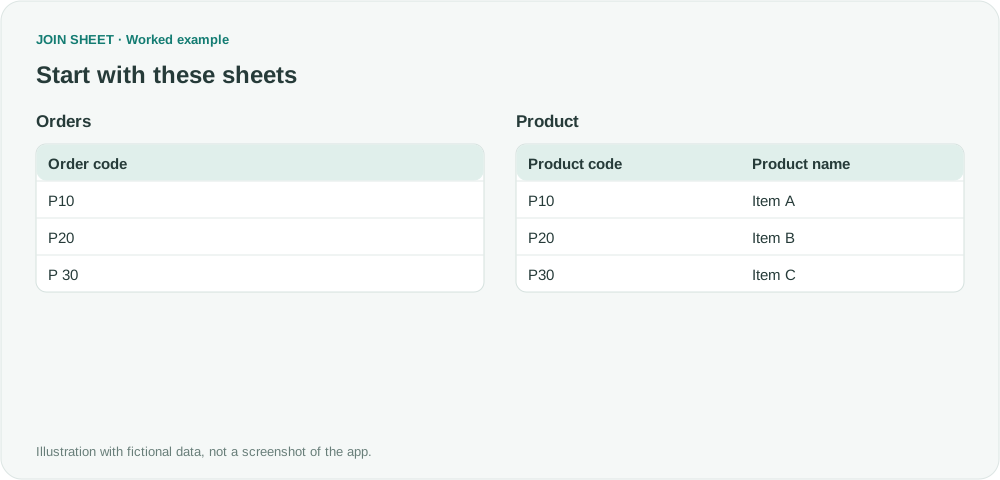
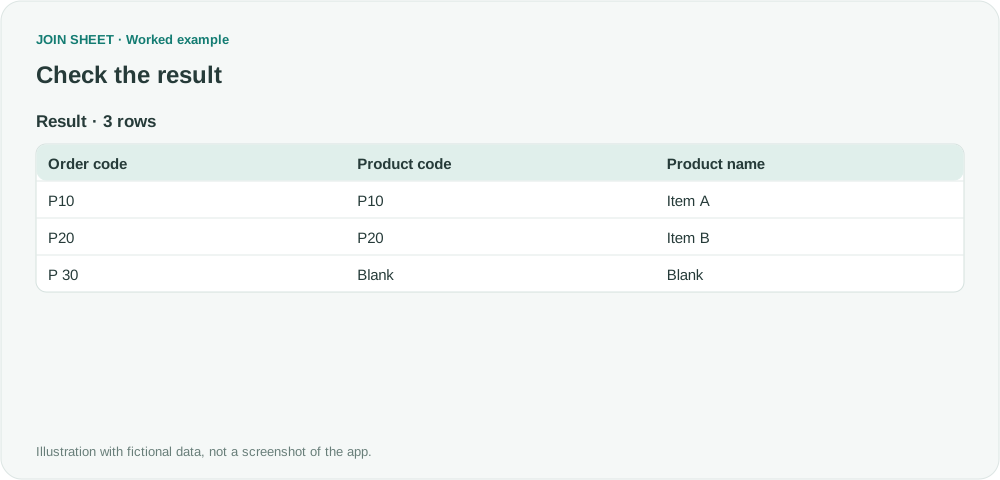
This fictional example includes a space before and after P10, a trailing non-breaking space after P20, and an internal space in P 30. The Product sheet contains P10, P20 and P30 without spaces.
Ignore only the surrounding spaces
- Connect Order code to Product code and choose All rows from Sheet 1, plus matches from Sheet 2, keeping Orders first.
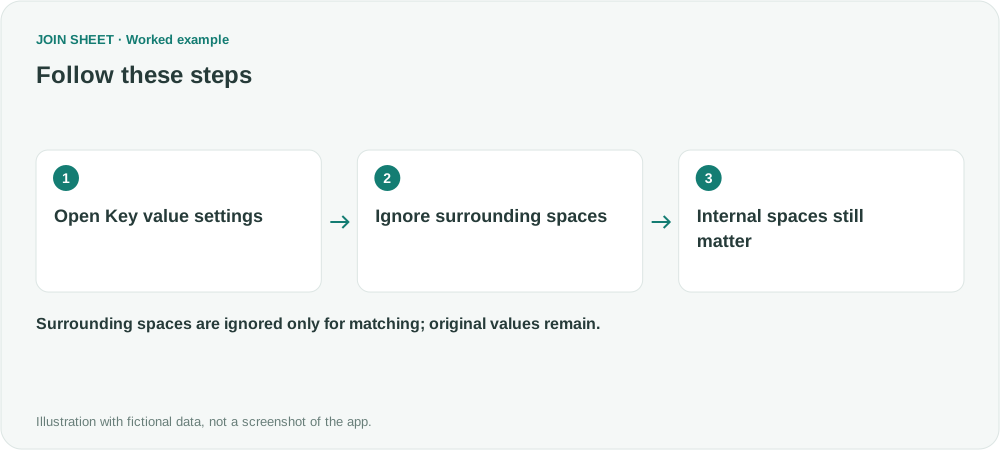
- Open Key value settings from the connection's line menu.
- Enable Ignore surrounding spaces and select Apply. Leave letter-case handling unchanged for this example.
- Check the matched product names and the remaining blanks in Result preview.
Expected result: two matches from three orders
| Order code condition | Product code | Result |
|---|---|---|
| Spaces around P10 | P10 | Item A matches |
| Non-breaking space after P20 | P20 | Item B matches |
| Space inside P 30 | P30 | No match |
All three orders remain, but only two receive product details. The option does not remove the internal space between P and 30. If P 30 and P30 are meant to be identical, apply the relevant cleanup rule in the source.
Does the option clean the whole file?
No. It applies to the connected text join keys between the two sheets, not every cell and not separate Compare values connections. Spaces remain in the original and displayed output values.
It is not a universal invisible-character remover. If the mismatch comes from a different symbol or corrupted character, inspect the source. Ignoring spaces may also make formerly distinct keys equivalent, increasing the number of matches. Run Check connection again and review matching pairs and duplicate-key counts.
For a letter-case issue instead, see matching uppercase and lowercase codes.
Spend less time on repetitive work
Connect and compare sheets to get the results you need.
This walkthrough uses the Pro plan.
Start with JOIN SHEET ↗Use a desktop computer for Excel and CSV work. Opens in a new tab without replacing your current work.
Example last verified:
Sources
VLOOKUP Error Stumper: Strange Formatting in Lookup Column — Reddit r/excel
The hidden-space problem inspired this independent example. It does not reproduce the author's file or claim they used JOIN SHEET.