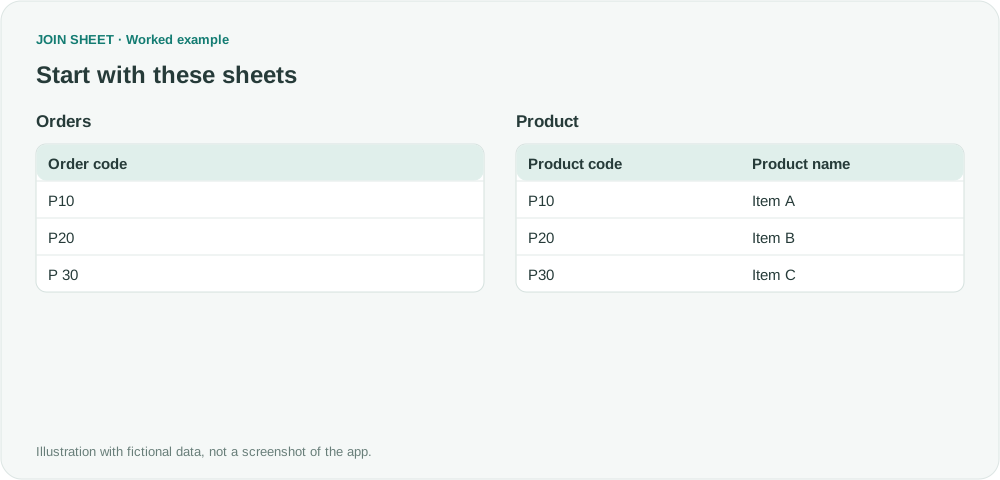
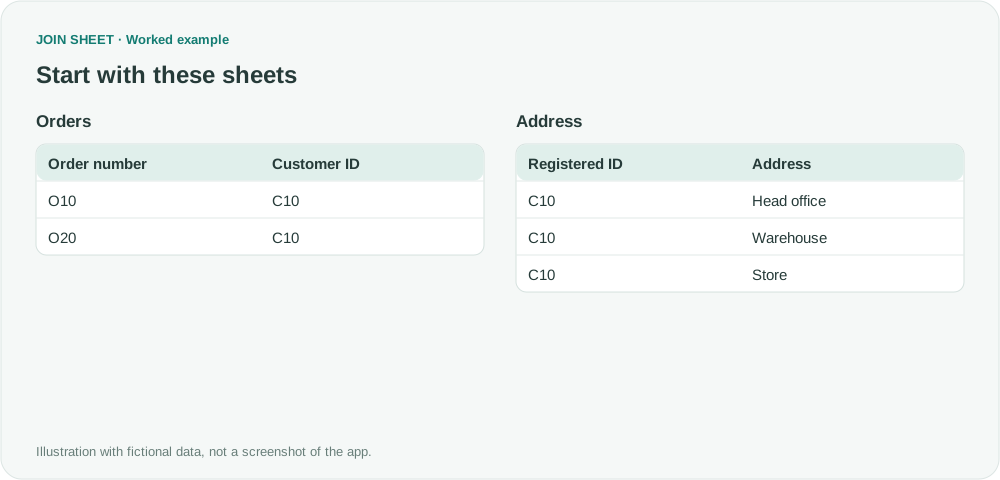
Should uppercase and lowercase product codes match?
Decide whether ABC and abc identify the same item before joining. Compare case-sensitive matching with Ignore letter case while preserving original values.
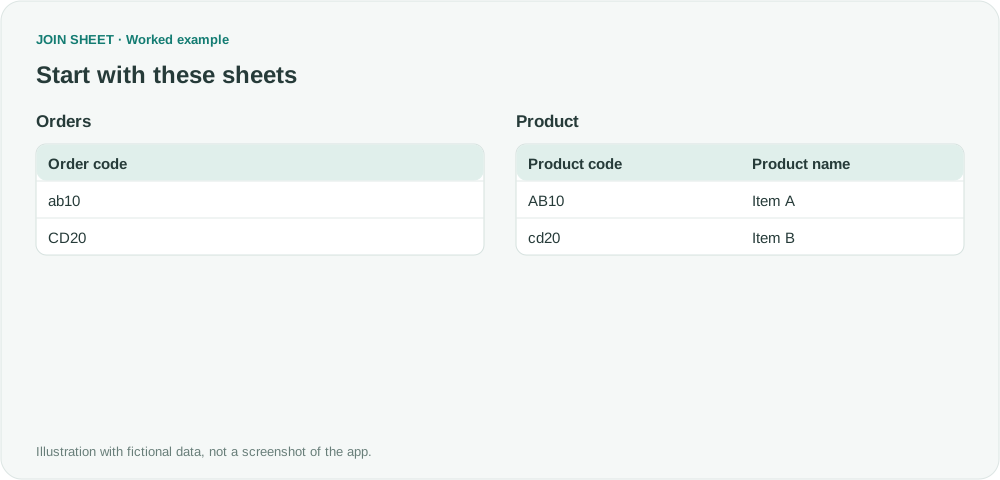
Use Ignore letter case only when uppercase and lowercase versions identify the same item. JOIN SHEET text joins are case-sensitive by default. If ABC and abc represent different products, leave that default in place.
The matching rule comes from the source system
One system may export every code in uppercase while a manually maintained list uses lowercase. In that situation, ab10 and AB10 may be equivalent. Another system may deliberately use case to distinguish identifiers.
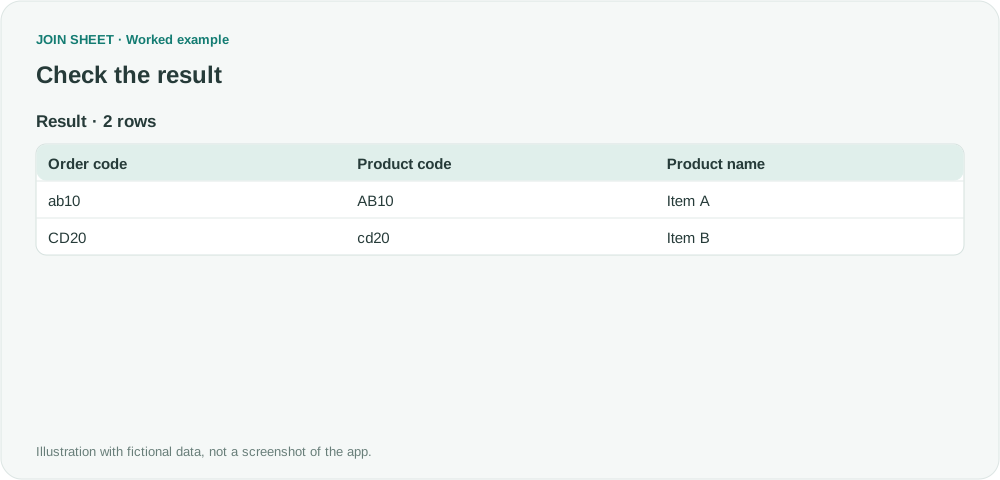
Do not assume that “exact match” means the same thing across tools. This fictional example treats letter case as a formatting difference: Orders has ab10 and CD20, while the Product sheet has AB10 and cd20.
Enable case-insensitive matching when appropriate
- Confirm that changing case does not change product identity in the source system.
- Connect Order code to Product code and select Matching rows only.
- Open Key value settings from the line menu and enable Ignore letter case.
- Select Apply, then inspect the original codes and matched product names in Result preview.
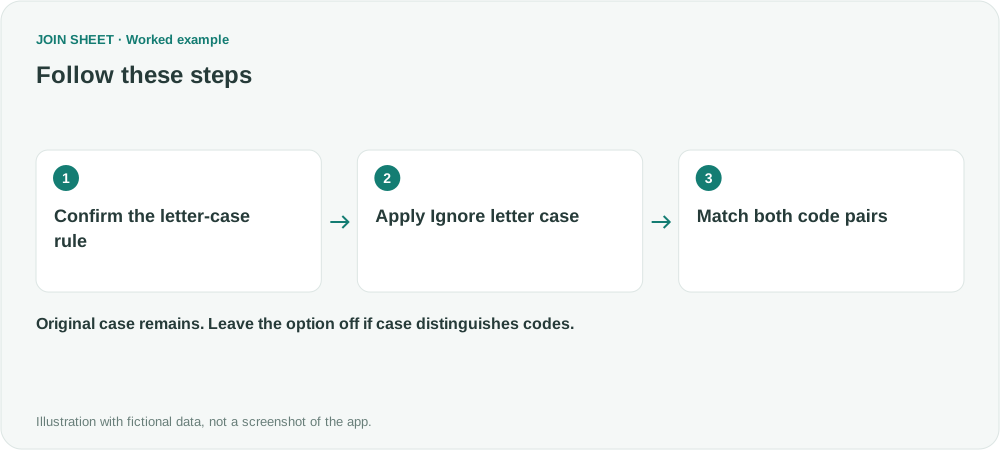
Expected result: two matches, unchanged spelling
| Order code | Product code | Product name |
|---|---|---|
| ab10 | AB10 | Item A |
| CD20 | cd20 | Item B |
Both pairs match with the option enabled. Neither pair matches with the default case-sensitive text comparison. JOIN SHEET does not rewrite all codes to uppercase or lowercase; it ignores case only while deciding whether the join keys match.
Why did enabling the option create more rows?
The Product sheet might contain AB10 and ab10 as separate records. Ignoring case can make both match a single order. Check the matched codes and run Check connection rather than assuming that any nonempty result is correct. See how repeated keys multiply rows.
This setting applies to text joins, not separate Compare values connections. It does not also remove surrounding spaces, correct misspellings or find similar-looking codes. Enable Ignore surrounding spaces separately only when that matches the data rule.
Spend less time on repetitive work
Connect and compare sheets to get the results you need.
This walkthrough uses the Pro plan.
Start with JOIN SHEET ↗Use a desktop computer for Excel and CSV work. Opens in a new tab without replacing your current work.
Example last verified:
Sources
Case sensitive vlookup or case sensitive if — Microsoft Q&A
The discussions informed the comparison-rule topic. The example codes are independently created and are not a product testimonial.