Why does joining two Excel tables create extra rows?
Two orders and three addresses for one customer produce six matching pairs. Check repeated join keys before deleting rows that may contain valid information.
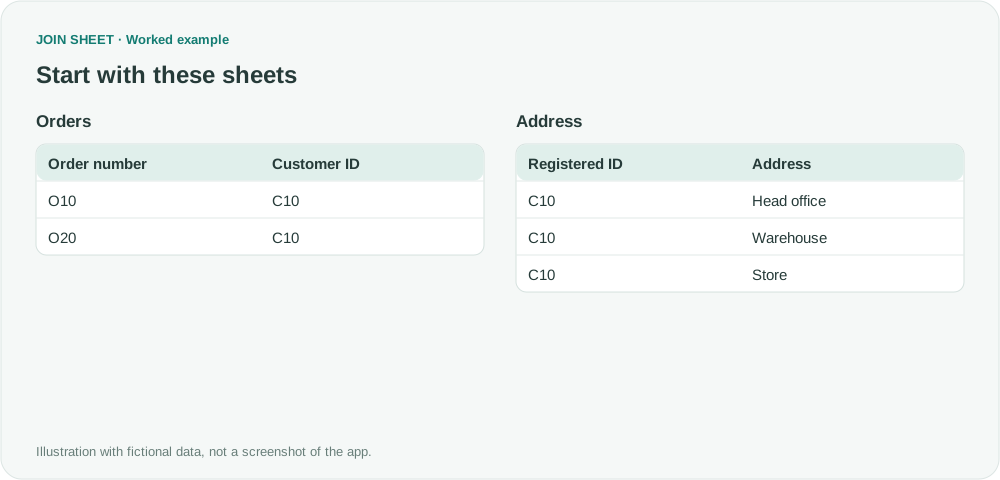
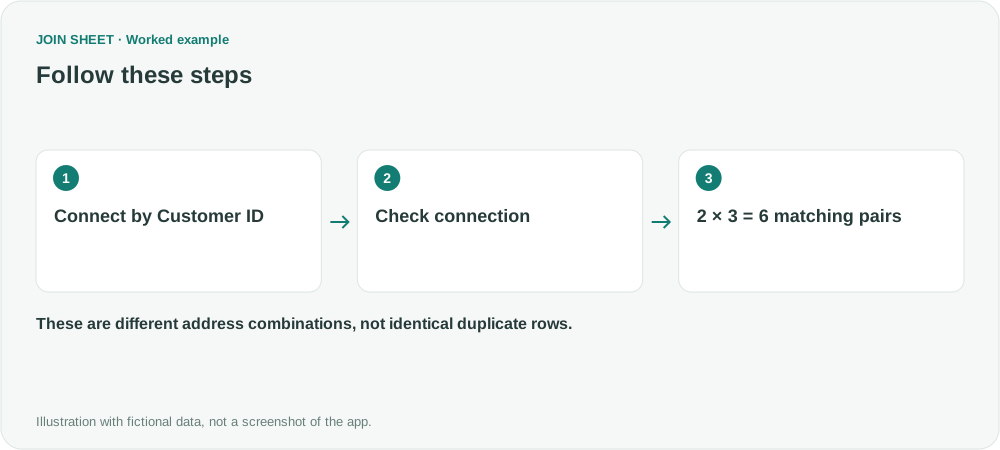
A join creates a row for every matching pair. If one customer ID appears in two orders and three delivery addresses, the join produces 2 × 3 = 6 rows. The extra rows are not necessarily duplicates you should delete; they may reveal that the join key is too broad.
Two orders can have six valid matches
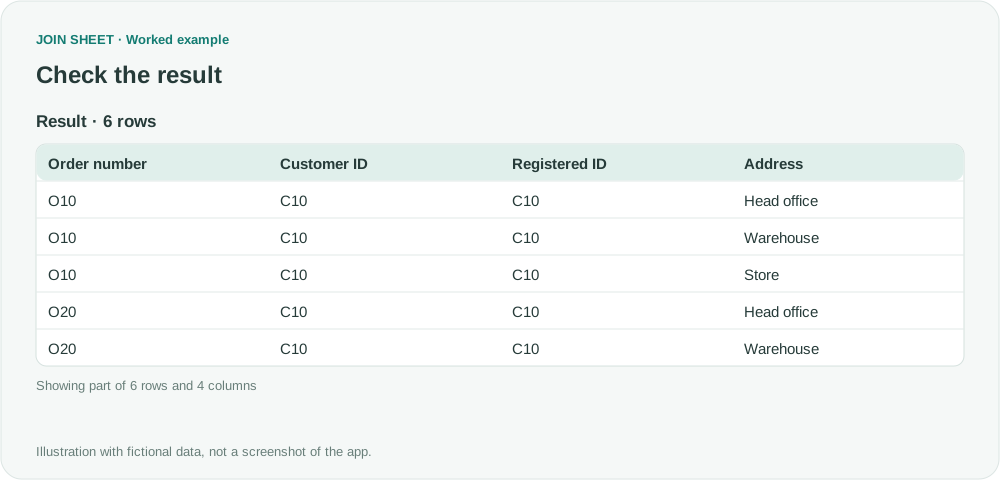
In this fictional example, customer C10 has orders O10 and O20. The address list contains Head office, Warehouse and Store for the same customer. Neither order includes an address code, so the customer ID alone cannot select the intended destination.
A lookup that returns only its first match can hide this relationship. JOIN SHEET joins, like relational table joins, return all matching combinations. Changing the tool does not resolve an ambiguous business rule.
Inspect the keys before removing rows
- Connect Customer ID in Orders to Registered ID in the Address sheet and choose Matching rows only.
- In Result preview, check how many times O10 and O20 appear.
- Open Check connection from the line menu and run the check.
- Expand the detailed counts. The two order rows and three address rows all belong to a repeated key; there is one repeated key value on each side.
- Inspect C10 in the source sheets to see which records share it. The duplicate counts are not a complete list of duplicate codes.
Expected result
| Order number | Customer ID | Address |
|---|---|---|
| O10 | C10 | Head office |
| O10 | C10 | Warehouse |
| O10 | C10 | Store |
| O20 | C10 | Head office |
| O20 | C10 | Warehouse |
| O20 | C10 | Store |
The order number repeats, but the address differs. Keeping one arbitrary row per order could discard the address that should have been used.
How can I get one intended address per order?
If each order has an address code, join on both customer ID and address code. If only the default address is relevant, filter the address sheet to the default records before joining. If neither rule exists, decide which address the business process requires first.
Check connection inspects the selected sheet pair. Its counts can differ from the final result after other joins or result refinements. After changing the keys, recheck the final row count and a few specific orders.
Spend less time on repetitive work
Connect and compare sheets to get the results you need.
This walkthrough uses the Pro plan.
Start with JOIN SHEET ↗Use a desktop computer for Excel and CSV work. Opens in a new tab without replacing your current work.
Example last verified:
Sources
Why do multiple-table joins produce duplicate rows? — Stack Overflow
Power query merge tables results in duplicate rows — Reddit r/excel
The public discussions informed this independent example. No community member's data or JOIN SHEET usage is presented as evidence.