How to match Excel data using two conditions without a lookup formula
Match both product and branch to bring back the correct price. Use two join keys and check duplicate combinations before calculating totals.
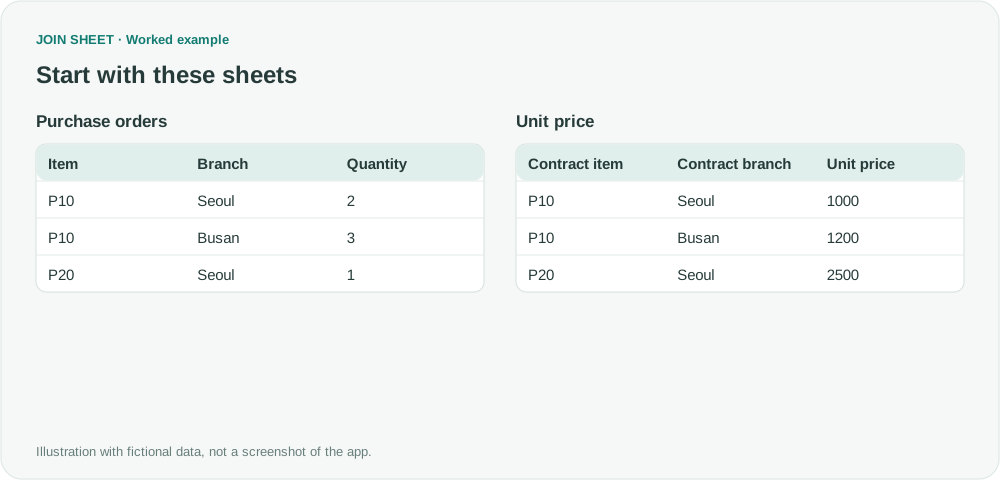
If a price depends on both product and branch, connect both column pairs in JOIN SHEET. A match must satisfy both conditions. This example uses Matching rows only to retain just the matches; other join methods can retain unmatched records too. There is no need to concatenate a helper key or write a multi-condition lookup formula.
Why matching the product alone gives the wrong price
In this fictional purchase list, P10 costs 1000 for the Seoul branch and 1200 for Busan. Joining only on P10 would attach both branch prices to each P10 purchase. The missing condition is the branch.
The source question discusses the difficulty of repeating multi-criteria XLOOKUPs over a large dataset. This article offers a visual way to express the conditions, not a claim that JOIN SHEET is always faster than Excel.
Add both join keys
- Load Purchase orders with Item, Branch and Quantity, and the Unit price sheet with Contract item, Contract branch and Unit price.
- Connect Item to Contract item and choose Matching rows only.
- Connect Branch to Contract branch as another join key.
- Open the connection symbol to confirm that there are two key columns. One join method applies to the keys between this pair of sheets.
- Check the branch and price together in Result preview.
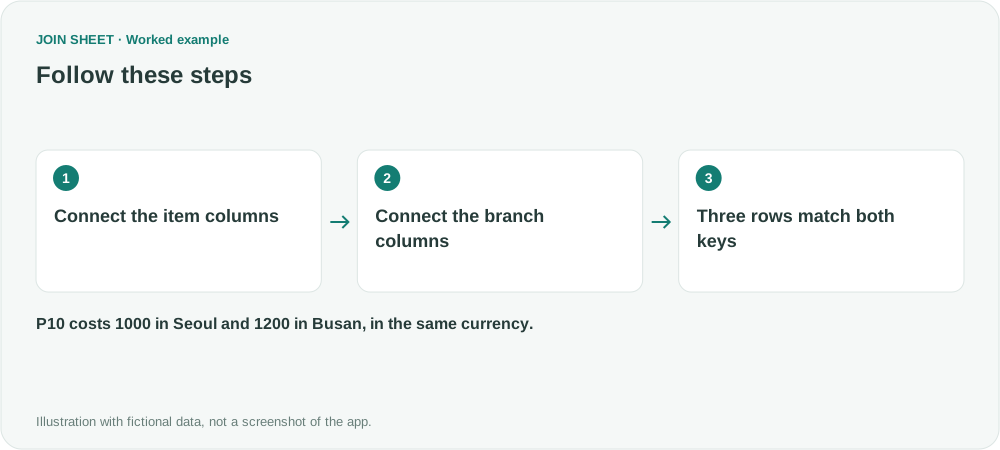
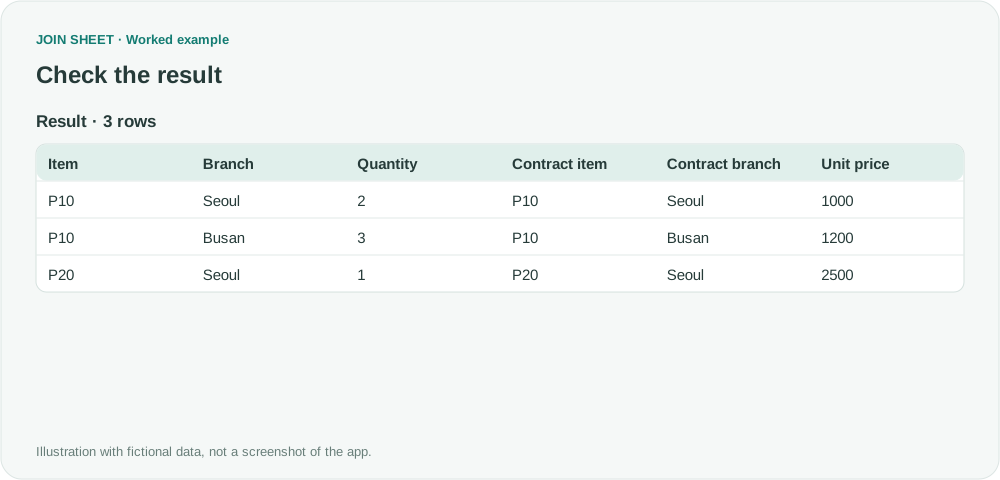
Expected result: three correctly priced purchases
| Item | Branch | Quantity | Matched unit price |
|---|---|---|---|
| P10 | Seoul | 2 | 1000 |
| P10 | Busan | 3 | 1200 |
| P20 | Seoul | 1 | 2500 |
The result has three rows. This shortened table shows the important fields; the full result also preserves Contract item and Contract branch. Prices use the same currency throughout the example.
Is this an AND condition or an OR condition?
It is an AND condition: both product and branch must match. It is not an OR lookup, a price-range match or a nearest-date lookup.
The product-and-branch combination must also identify the intended price. If that combination repeats in the Unit price sheet, multiple matches can still appear. Open Check connection from the line menu and inspect the duplicate-key counts; examine the source sheet to identify the repeated values. Why joins can multiply rows explains what those extra matches mean.
Spend less time on repetitive work
Connect and compare sheets to get the results you need.
This walkthrough uses the Pro plan.
Start with JOIN SHEET ↗Use a desktop computer for Excel and CSV work. Opens in a new tab without replacing your current work.
Example last verified:
Sources
Multi criteria Xlookup efficiency problem — Reddit r/excel
This fictional product-and-branch example addresses the question's multi-condition lookup problem. It does not imply that the author used or reviewed JOIN SHEET.