
How to match Excel data using two conditions without a lookup formula
Add the right branch price to each order by matching both product and branch. Set up the two matching conditions visually in JOIN SHEET.
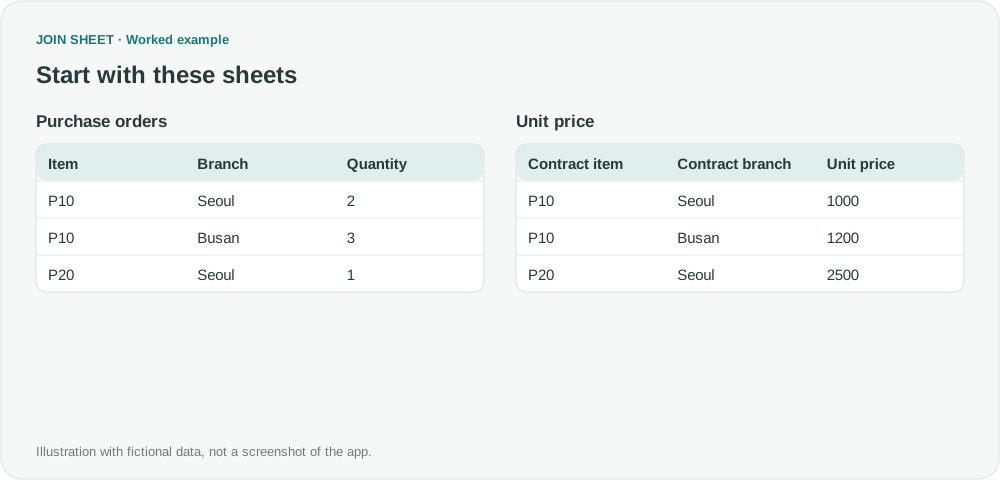
When the same product has different prices at different branches, match on both product and branch. Join on those two column pairs in JOIN SHEET and select Matching rows only. Each order then receives the price for its own branch without a helper column or a multi-condition lookup formula.
Why matching the product alone gives the wrong price
In this fictional purchase list, P10 costs 1,000 for the Seoul branch and 1,200 for Busan. Joining only on P10 would attach both branch prices to each P10 purchase. The missing condition is the branch.
The same pattern works for other exact-match lookups, such as a product and contract version. Choose the columns that identify the particular record you want, then join each corresponding pair.
Add both join keys
- Load Purchase orders with Item, Branch and Quantity, and the Unit price sheet with Contract item, Contract branch and Unit price.
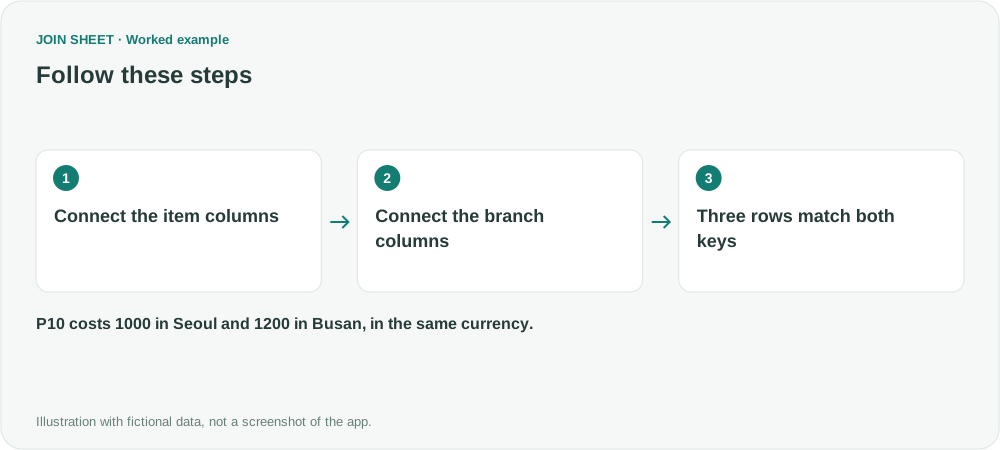
- Join Item to Contract item and choose Matching rows only.
- Join Branch to Contract branch as another join key.
- Open the join symbol to confirm that there are two key columns. One join method applies to the keys between this pair of sheets.
- Check the branch and price together in Result preview.
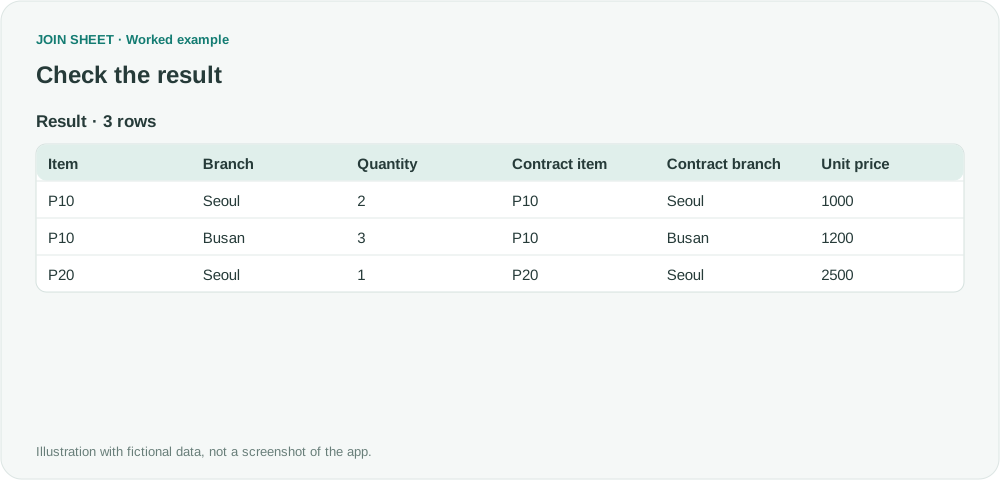
Expected result: three correctly priced purchases
| Item | Branch | Quantity | Matched unit price |
|---|---|---|---|
| P10 | Seoul | 2 | 1,000 |
| P10 | Busan | 3 | 1,200 |
| P20 | Seoul | 1 | 2,500 |
The result has three rows. This shortened table shows the important fields; the full result also preserves Contract item and Contract branch. Prices use the same currency throughout the example.
Is this an AND condition or an OR condition?
Both product and branch must match. If you also need to keep orders without a matching price, place Purchase orders on the left and Unit price on the right, then change the join method to All rows from the left sheet. The two matching conditions stay the same; orders without a price remain with blank price fields.
For a rule such as “either condition matches,” a price range or the nearest date, this exact-match setup is not the right choice. Establish the matching rule before building the join.
Each product and branch pair should identify the price you want. If that pair appears more than once in Unit price, an order can still get several matches. Open Check join from the line menu to check the duplicate-key counts, then inspect the repeated values in the source sheet. See why joins can multiply rows for an example.
Try it with your own files
Start with JOIN SHEET ↗Use a desktop computer for Excel and CSV work.
Opens in a new tab without replacing your current work.
Example last verified:
Sources
Multi criteria Xlookup efficiency problem — Reddit r/excel
The source asks about multi-condition XLOOKUP performance across roughly 150,000 rows; its author reports an improvement after applying an answer. This fictional price example covers matching on several exact criteria. It is not a performance comparison between tools.