How to count unique customers by region without counting repeat orders
Group by region and customer ID, then count those combinations by region. Separate order counts, regional customer counts and company-wide unique customers.
To count unique customers within each region, first summarize by Region and Customer ID, then summarize those combinations by Region using Count. This two-step workflow prevents repeat orders from being counted as additional customers. It is not a dedicated one-click distinct-count feature.
Six orders do not mean six customers
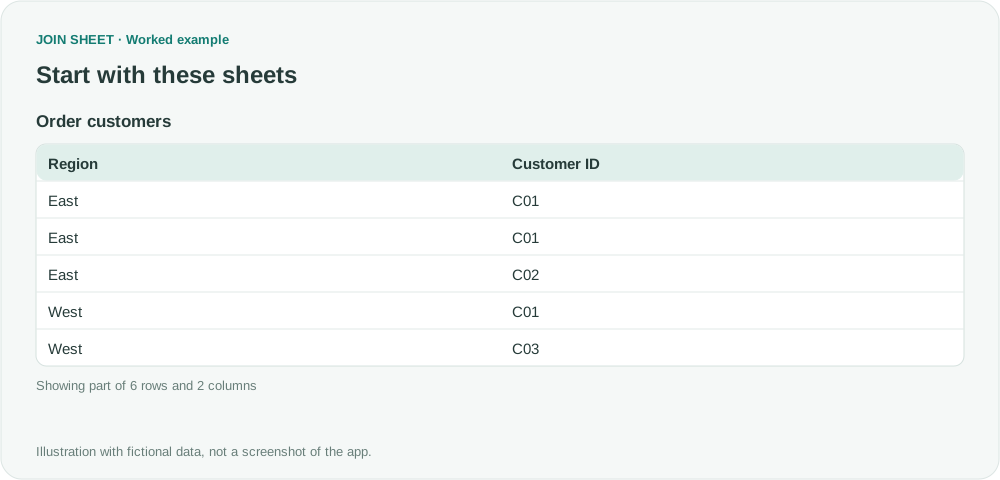
The fictional order list below contains repeat orders from C01 in East and C03 in West. C01 also ordered in West, so that customer will count once in each region.
| Region | Customer ID |
|---|---|
| East | C01 |
| East | C01 |
| East | C02 |
| West | C01 |
| West | C03 |
| West | C03 |
The desired regional counts are East=2 and West=2. Across the entire business there are only three unique customers: C01, C02 and C03.
Create one row per region–customer pair, then count it
- Load and select the sheet, open Refine results, and add Summarize.
- Set Group by to Region and Customer ID. Add Count named Orders. This makes one row per region–customer combination.
- Add a second Summarize step. This time, group only by Region.
- Choose Count and name it Customers, then Apply. Do not sum the Orders field from the preceding step.
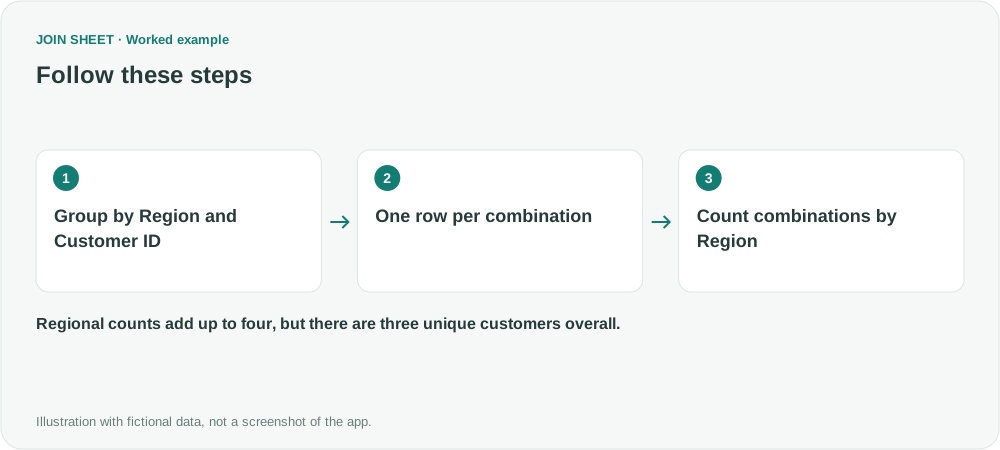
The first step produces four combinations: East–C01, East–C02, West–C01 and West–C03. The second step counts two of those rows in each region.
Expected result and the important total
| Region | Customers |
|---|---|
| East | 2 |
| West | 2 |
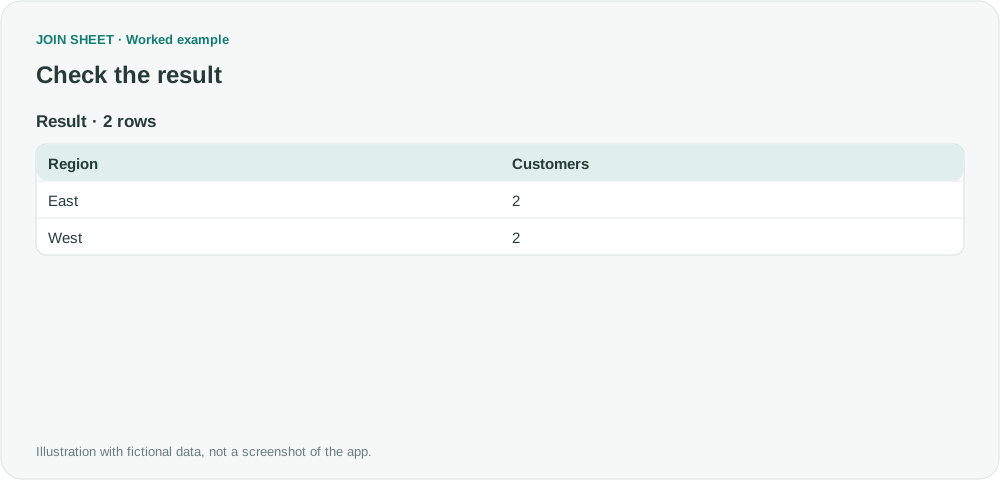
Adding these counts gives four regional customer memberships, not four different people. Label the report “Customers by region” to avoid confusing it with a company-wide unique-customer count.
How do I count customers across all regions instead?
Group only by Customer ID in the first summary, then leave the second summary's grouping empty and use Count. That gives three for this example.
To avoid counting missing IDs as a customer, add a Customer ID Is not empty filter before the first summary. Use stable IDs instead of names, and standardize inconsistent case or spaces in the source. The grouping does not automatically identify different spellings as the same person.
Spend less time on repetitive work
Connect and compare sheets to get the results you need.
This walkthrough uses the Pro plan.
Start with JOIN SHEET ↗Use a desktop computer for Excel and CSV work. Opens in a new tab without replacing your current work.
Example last verified:
Sources
Simple pivot table to count unique values — Stack Overflow
The distinction between grouped counts and unique values informed this independently constructed order example. No source formulas or images are reused.