
Calculate each item’s share of its region’s total
Find each item’s share of sales within its own region. Save item and regional totals, join them by region, then calculate the percentages.
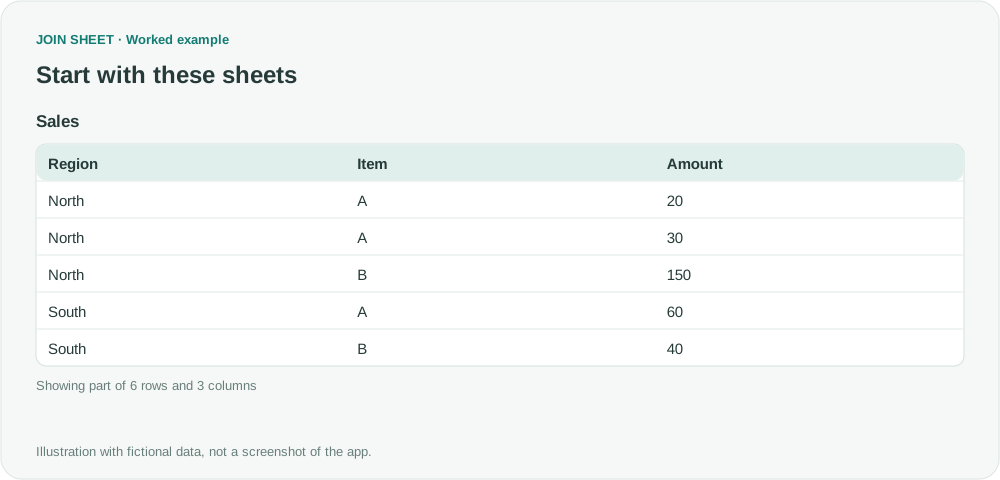
To see an item's share of sales within its region, divide its sales by that region's total. Save the item totals and regional totals separately in JOIN SHEET, join them by region, then calculate the percentage for each item.
The denominator changes by region
Amount contains fictional sales in one currency. Some combinations of Region and Item have several transactions. The region named Zero has one recorded sale amount of 0.
| Region | Item | Amount |
|---|---|---|
| North | A | 20 |
| North | A | 30 |
| North | B | 150 |
| South | A | 60 |
| South | B | 40 |
| Zero | A | 0 |
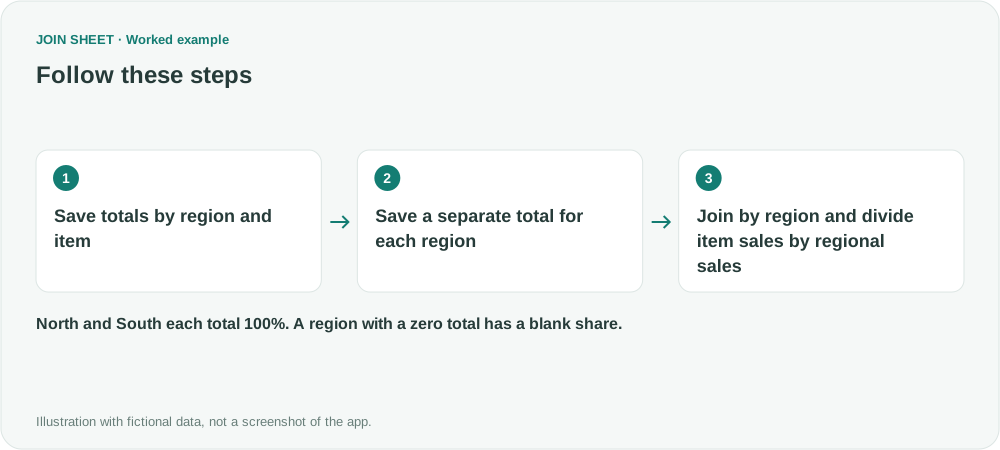
North totals 200 and South totals 100. Dividing North's A sales of 50 by the overall 300 gives about 16.67%. Its share within North is 25%. Decide which population the percentage describes before calculating it.
Save item totals and regional totals separately
- Select Sales as the result base and open Summarize in Refine results. Group by Region and Item, and sum Amount as ItemSales. Click Apply and save the five-row result.
- Keep that saved file, then reopen Refine results. In the existing summary, remove Item from Group by so only Region remains. Keep Sum of Amount and change Output field name to ParentSales. Click Apply, check North=200, South=100 and Zero=0, and save a separate file without replacing the item totals.
- Use the same date range and transaction filters for both summaries. If you restrict only the item totals, they will cover fewer records than the regional totals you divide them by.
Alternatively, after saving the item totals, reopen Refine results and add a second Summarize below the first. Group by Region and sum ItemSales as ParentSales; the original Amount field is no longer available after the first summary. Apply and save the regional totals to a separate file. Whichever approach you use, that file must have exactly one row per Region.
Give each item its own region's total
Load ItemTotals and RegionTotals in a new workspace. Join them on Region with Matching rows only, using ItemTotals as the result base. Hide the duplicate Region from RegionTotals.
In Refine results, add Calculate. Use ItemSales as the first value, ParentSales as the second, and Ratio (%) · A ÷ B × 100 as the operation. Enter SharePct in Output field name. Add one Sort step for Region, use Add sort field for Item, set both to Ascending, and click Apply.
Check the total within each region
| Region | Item | ItemSales | ParentSales | SharePct |
|---|---|---|---|---|
| North | A | 50 | 200 | 25 |
| North | B | 150 | 200 | 75 |
| South | A | 60 | 100 | 60 |
| South | B | 40 | 100 | 40 |
| Zero | A | 0 | 0 | ∅ |
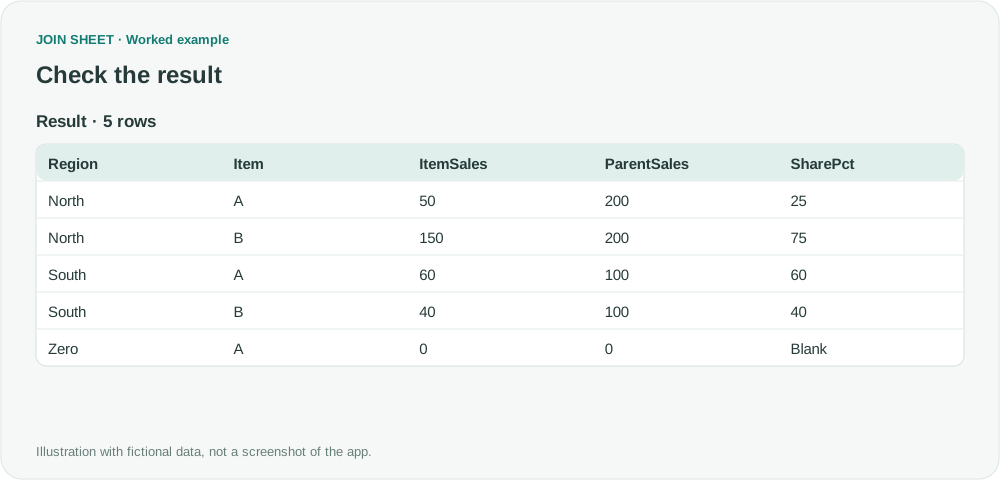
North has 25+75=100%, and South has 60+40=100%. The percentages across the entire table are not supposed to add to 100%. A SharePct value of 25 already represents 25%; do not multiply it by 100 again.
Zero produces a blank (∅) because its calculation is 0÷0. This is not a defined share of 0%. Check the recorded amounts and reporting population. If mismatched file versions leave a region without its parent total, Matching rows only will omit it. Confirm that both files came from the same source and rules, and that the five item rows remain after the join.
The result has one row per region and item. It calculates the shares without reproducing the source question's PivotTable layout or turning items into separate columns.
Try it with your own files
Start with JOIN SHEET ↗Use a desktop computer for Excel and CSV work.
Opens in a new tab without replacing your current work.
Example last verified:
Sources
Mac Excel 2016 Pivot Table - How to show values as percent of parent inspired this independently created fictional example.