
Match contacts by email or phone within a company
Run company-plus-email and company-plus-phone joins separately, then combine the ID pairs. Exclude blank contact keys and remove repeated pairs.
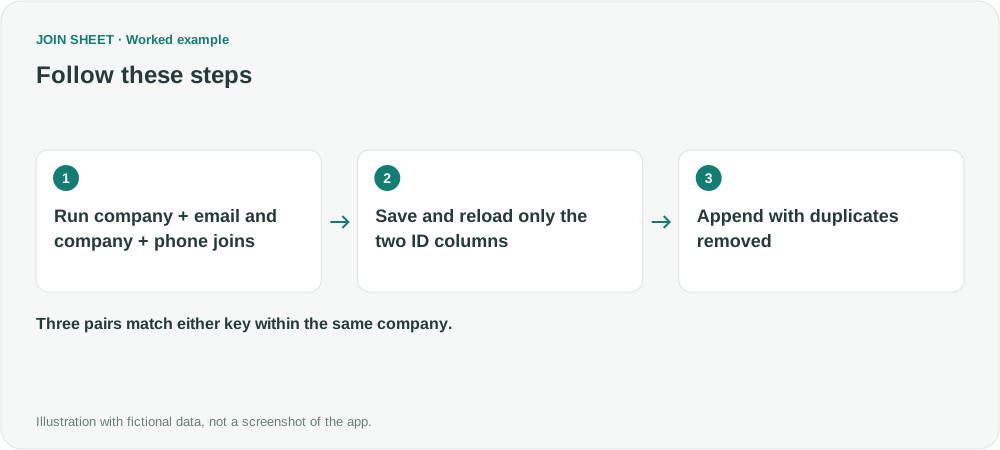
To match contacts within the same company by either email or phone, run two joins. Match company and email first, then company and phone. Save only the record ID pairs from each result and append those lists with duplicates removed. Adding email and phone to one join would require both to match.
Source contacts and the two match lists
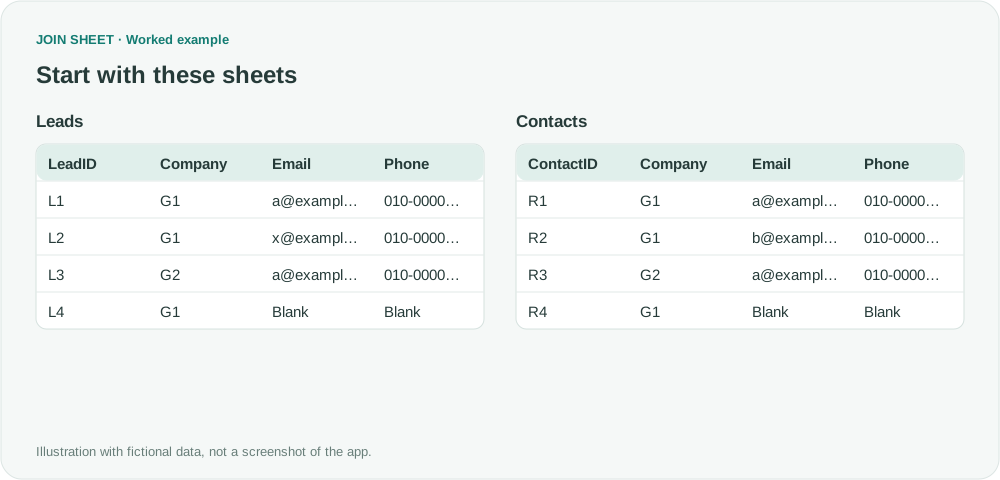
These are fictional source records. G1 and G2 are different companies, and the email addresses are examples. ∅ marks a blank cell.
Leads
| LeadID | Company | Phone | |
|---|---|---|---|
| L1 | G1 | a@example.invalid | 010-0000-0001 |
| L2 | G1 | x@example.invalid | 010-0000-0002 |
| L3 | G2 | a@example.invalid | 010-0000-0003 |
| L4 | G1 | ∅ | ∅ |
Contacts
| ContactID | Company | Phone | |
|---|---|---|---|
| R1 | G1 | a@example.invalid | 010-0000-0001 |
| R2 | G1 | b@example.invalid | 010-0000-0002 |
| R3 | G2 | a@example.invalid | 010-0000-0099 |
| R4 | G1 | ∅ | ∅ |
The two tables below are intermediate results you will create and save during the walkthrough. EmailMatches contains pairs matched by company and email; PhoneMatches contains pairs matched by company and phone. Each has only LeadID and ContactID so duplicate removal can recognize a pair found by both methods.
The symbol ∅ represents a blank cell, not text to type.
EmailMatches
| LeadID | ContactID |
|---|---|
| L1 | R1 |
| L3 | R3 |
PhoneMatches
| LeadID | ContactID |
|---|---|
| L1 | R1 |
| L2 | R2 |
Save two join results, then append them
- Load Leads and Contacts. Set Company, Email and Phone to text on both sides. LeadID and ContactID must uniquely identify records within their source. Keep Ignore surrounding spaces and Ignore letter case off for this exact-value example.
- First join Company to Company and Email to Email, choosing Matching rows only. Apply an Is not blank source filter to Email on both sheets. Retain the Company condition so the same email at another company cannot match.
- Hide Company, Email and Phone in both sheets, leaving only LeadID and ContactID in the output. Verify L1–R1 and L3–R3, then save to Excel as EmailMatches.
- For the second run, keep the Company connection, remove the Email connection and connect Phone to Phone. Remove the Email filters and apply Is not blank to Phone on both sheets. Again use Matching rows only and save the same two ID columns, containing L1–R1 and L2–R2, as PhoneMatches.
- Load the two saved results into a fresh workspace. Both must have the same two column names: LeadID and ContactID. Select EmailMatches as the result source, drag its bottom + point to PhoneMatches' top + point, and choose Keep one copy of identical rows. Verify the three final pairs and save.
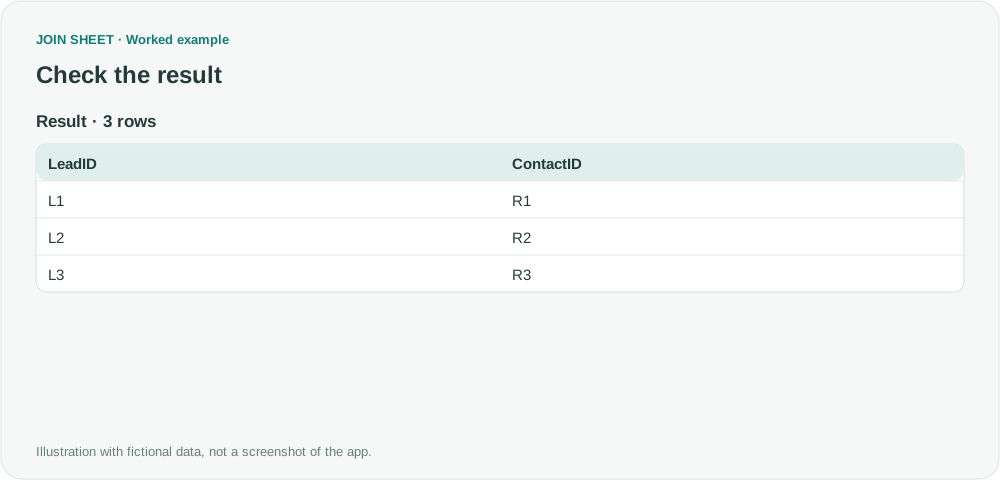
Three pairs match at least one contact key
L1–R1 appears in both joins but only once in the final result. L2–R2 matches by phone; L3–R3 by email. Blank contacts L4–R4 are excluded, as are cross-company pairs such as L1–R3.
| LeadID | ContactID |
|---|---|
| L1 | R1 |
| L2 | R2 |
| L3 | R3 |
Review possible matches before treating them as the same person
One LeadID can match several ContactIDs. The workflow keeps every matching pair; it does not prefer email over phone or decide whether two records are the same person. Standardize phone punctuation and country codes in the source copies if needed. Exclude empty strings and contact values containing only spaces on both sides.
Duplicate removal compares the whole output row. If you add a column for email or match method, the same ID pair may remain twice because those extra values differ.
Try it with your own files
Start with JOIN SHEET ↗Use a desktop computer for Excel and CSV work.
Opens in a new tab without replacing your current work.
Example last verified:
Sources
Merge 2 tables in Power Query based on multiple conditions (Microsoft Fabric Community)
The Power Query question asks for Column1 AND (Column2 OR Column3). A reply proposes two merges and an append, but the author remains confused about the OR logic in follow-up messages. This example preserves that logic using company, email and phone, including the manual save-and-reload steps in JOIN SHEET. The example data was created separately for this guide. The source is not a product testimonial or endorsement.