
Find the latest purchase date for each customer
Group purchase history by customer and find each customer’s most recent purchase date without sorting every order.
For a customer follow-up list, you may only need to know when each customer last bought something. In JOIN SHEET, group the purchase history by customer and take the maximum date. The orders do not need to be sorted first.
The latest date and largest amount can belong to different orders
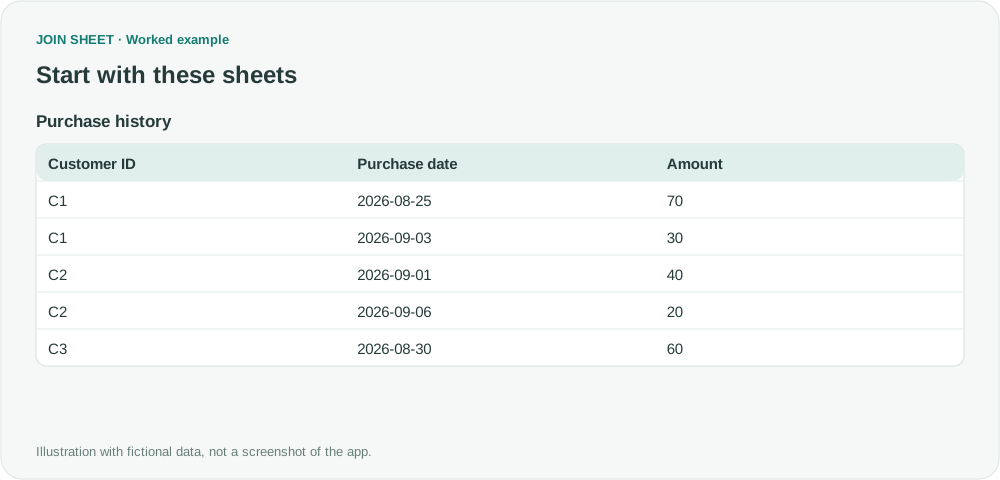
In the fictional history, C1's largest purchase is 70, but the latest purchase is 30. Taking independent maxima for Date and Amount could combine values from different orders. This example returns only the date.
| Customer ID | Purchase date | Amount |
|---|---|---|
| C1 | 2026-08-25 | 70 |
| C1 | 2026-09-03 | 30 |
| C2 | 2026-09-01 | 40 |
| C2 | 2026-09-06 | 20 |
| C3 | 2026-08-30 | 60 |
Summarize dates by customer
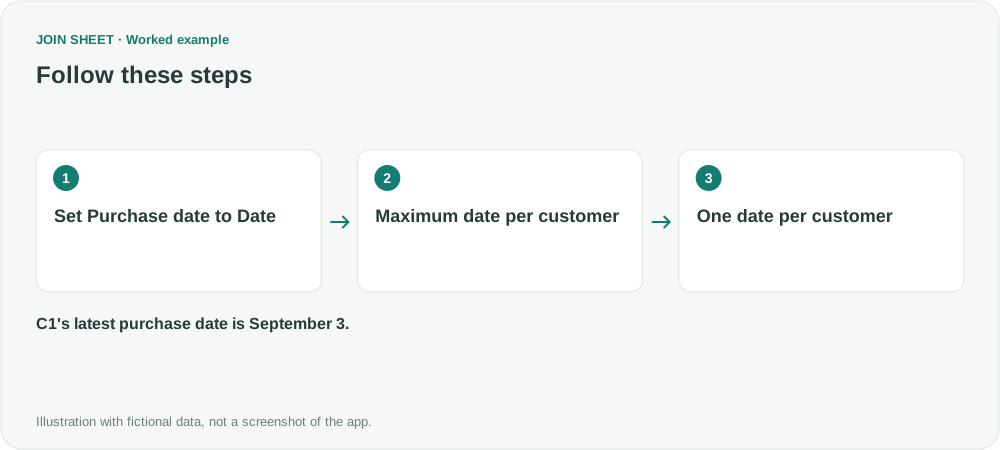
- Load Purchase history and select it as the result source. Set Purchase date to Date and check for values that failed to convert.
- Open Refine results and add Summarize. Group by Customer ID.
- Choose Maximum for Purchase date and name the output Latest purchase date. Leave Amount out of the summary.
- Choose Apply and check that there is one row per customer.
No preliminary sort is needed
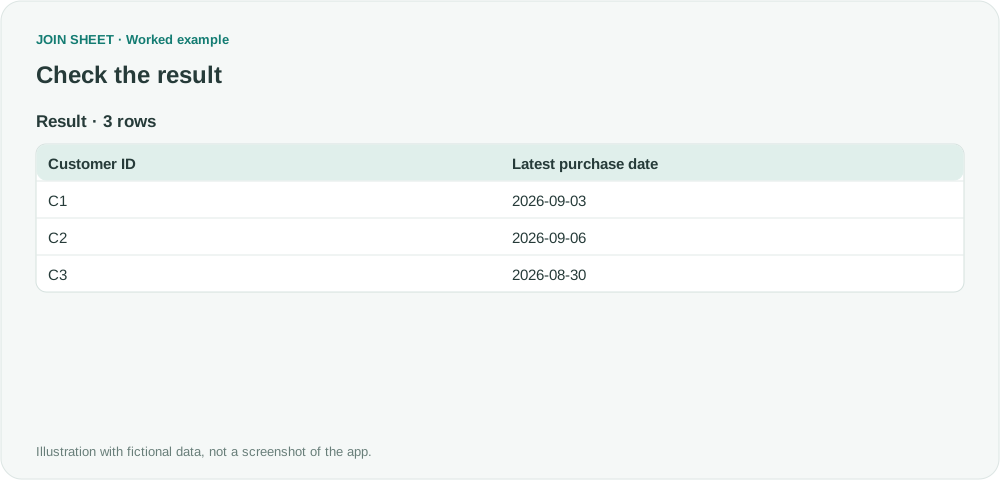
C1 returns September 3, C2 September 6, and C3 August 30. Attaching the maximum amount of 70 to C1 would not make it the latest order amount. If a date is wrong, check date conversion and spaces in the customer identifier.
| Customer ID | Latest purchase date |
|---|---|
| C1 | 2026-09-03 |
| C2 | 2026-09-06 |
| C3 | 2026-08-30 |
To retrieve the complete latest order, save the summary and load that file with the original purchase history in a new workspace. Join on Customer ID and on Purchase date to Latest purchase date, using Matching rows only. If a customer placed several orders that day, they will all match. Use Date & time for the initial summary and the later join if you need the time to distinguish those orders.
Try it with your own files
Start with JOIN SHEET ↗Use a desktop computer for Excel and CSV work.
Opens in a new tab without replacing your current work.
Example last verified:
Sources
The question Excel: Return the latest date for each value in another column? informed this independently created fictional example.