
Look up the submitter and approver from one staff list
Add submitter and approver names to transactions using two copies of the staff list, while keeping transactions with missing staff entries.
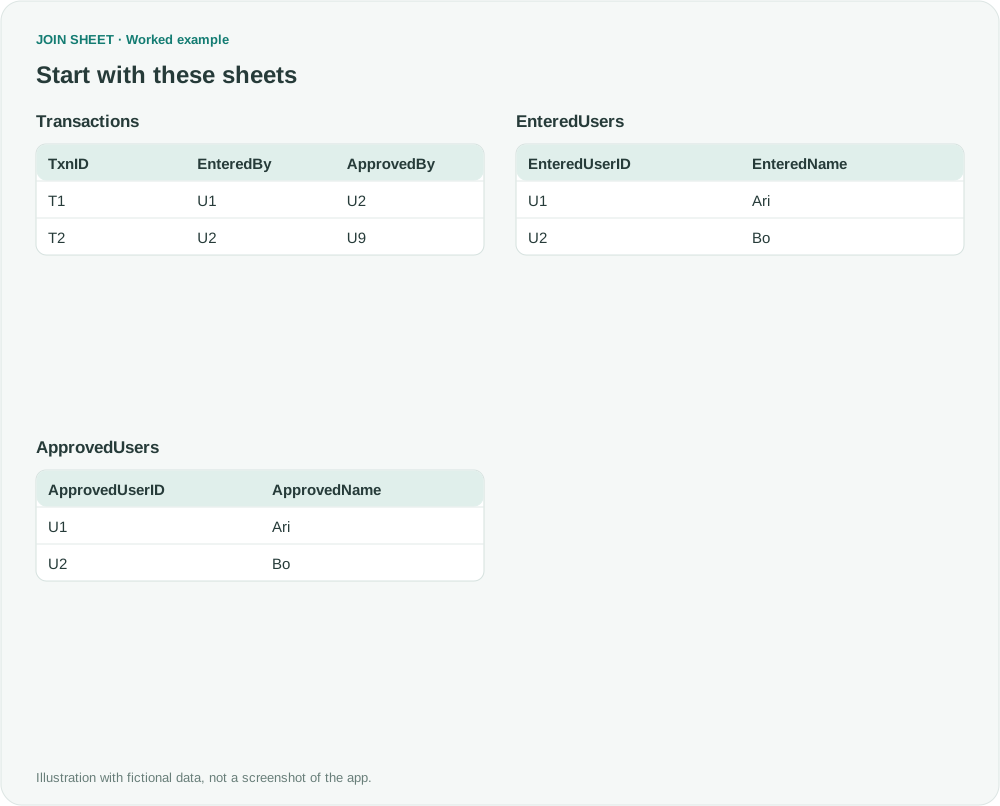
To add both submitter and approver names, prepare two copies of the staff list. Join EnteredBy to the submitter copy and ApprovedBy to the approver copy. If you join both IDs to a single staff sheet, they must match the same person, which fails when someone submits a transaction and someone else approves it.
Prepare a staff lookup for each role
The fictional Users list contains U1, Ari, and U2, Bo, in columns UserID and Name. In Excel, make EnteredUsers and ApprovedUsers copies and rename their headers as shown below. T2 lists U9 as its approver, but U9 is missing from the staff list.
The symbol ∅ represents a blank cell, not text to type.
Transactions
| TxnID | EnteredBy | ApprovedBy |
|---|---|---|
| T1 | U1 | U2 |
| T2 | U2 | U9 |
EnteredUsers
| EnteredUserID | EnteredName |
|---|---|
| U1 | Ari |
| U2 | Bo |
ApprovedUsers
| ApprovedUserID | ApprovedName |
|---|---|
| U1 | Ari |
| U2 | Bo |
Keep transactions on the left of both joins
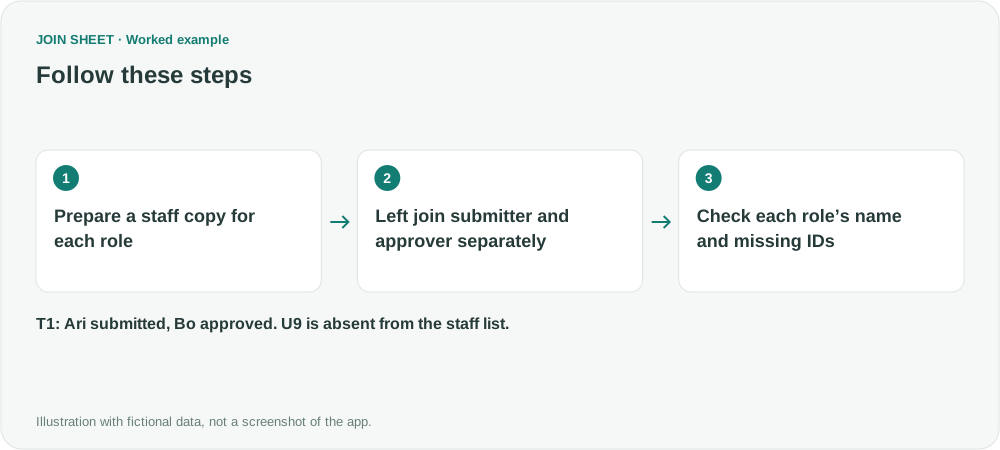
- Prepare the two staff sheets in source copies and check that each contains one row per staff ID. Use EnteredUserID and EnteredName in EnteredUsers, and ApprovedUserID and ApprovedName in ApprovedUsers. Load them with Transactions.
- Place Transactions on the left and EnteredUsers on the right. Join EnteredBy to EnteredUserID and choose All rows from the left sheet. This retains transactions whose submitter is missing from the staff list.
- Make a second connection with Transactions on the left and ApprovedUsers on the right. Join ApprovedBy to ApprovedUserID, again choosing All rows from the left sheet. Do not join the two staff copies to each other.
- Select Transactions as the result base. Check that EnteredName and ApprovedName correspond to their respective IDs, then save. During review, retain the right-side ID fields to distinguish a missing reference from a matched staff record with a blank name.
Ari submitted it; Bo approved it
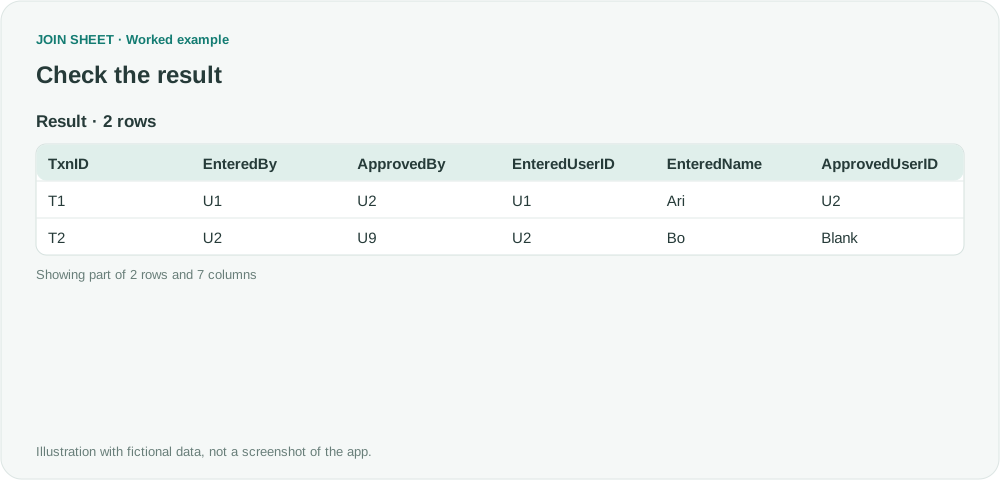
T1 shows Ari as submitter and Bo as approver. T2 has submitter Bo but blank ApprovedUserID and ApprovedName. Its original ApprovedBy value U9 remains, so you can investigate the missing staff entry. The result retains both transactions.
| TxnID | EnteredBy | ApprovedBy | EnteredUserID | EnteredName | ApprovedUserID | ApprovedName |
|---|---|---|---|---|---|---|
| T1 | U1 | U2 | U1 | Ari | U2 | Bo |
| T2 | U2 | U9 | U2 | Bo | ∅ | ∅ |
Check duplicate staff IDs and missing references
Check for duplicate IDs in each staff copy, as they can repeat transaction rows. Include only the staff records needed for the lookup. When the roster changes, update and reload both copies; they do not synchronize automatically. This workflow does not reduce the cost of loading a large staff table from a database.
Try it with your own files
Start with JOIN SHEET ↗Use a desktop computer for Excel and CSV work.
Opens in a new tab without replacing your current work.
Example last verified:
Sources
Multiple copies of the same table (Microsoft Fabric Community)
The Power Query / Power BI question asks how to resolve Entered By, Authorised By and Paid By through the same Users list, while avoiding repeated loads of a large Person table. It has an accepted answer. This independent Excel/CSV example covers two role lookups, not the original model's loading-performance problem. The example data was created separately for this guide. The source is not a product testimonial or endorsement.