
How to join Excel tables without losing unmatched records
Bring sales and stock quantities together without dropping products found in only one file. Keep both lists and identify the blanks that need checking.
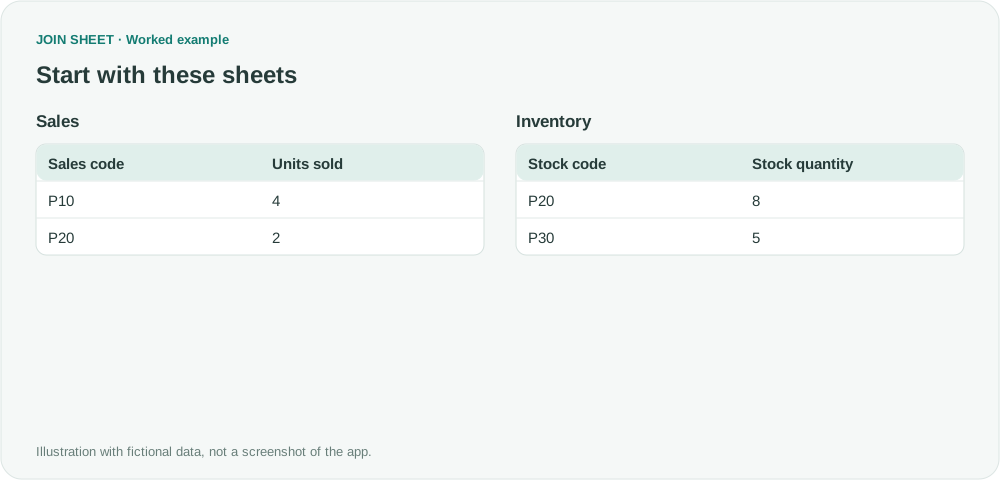
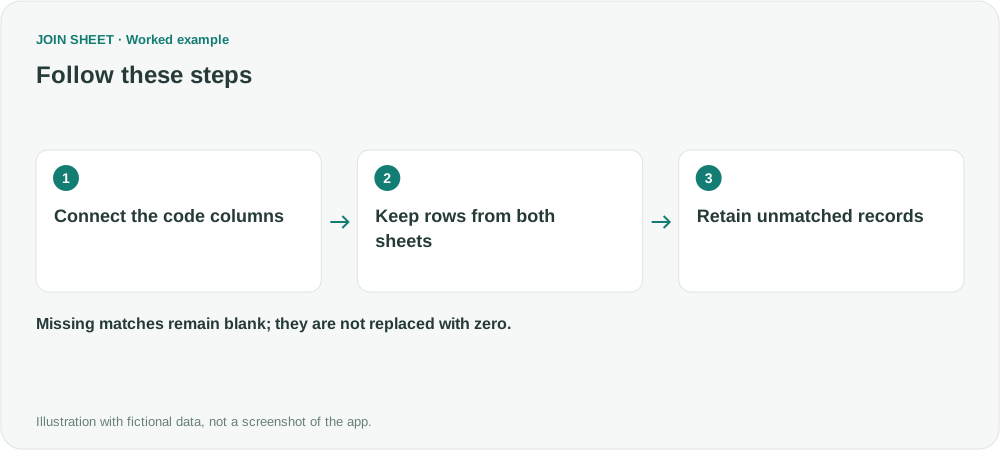
To see sales and stock side by side, including products found in only one file, join the code columns and choose All rows from both sheets. Shared products appear together; unmatched products remain with blanks for the missing side.
The result keeps Sales code and Stock code in separate columns. If you need a single product-code column, combine them in the saved Excel file.
See sales and stock in one result
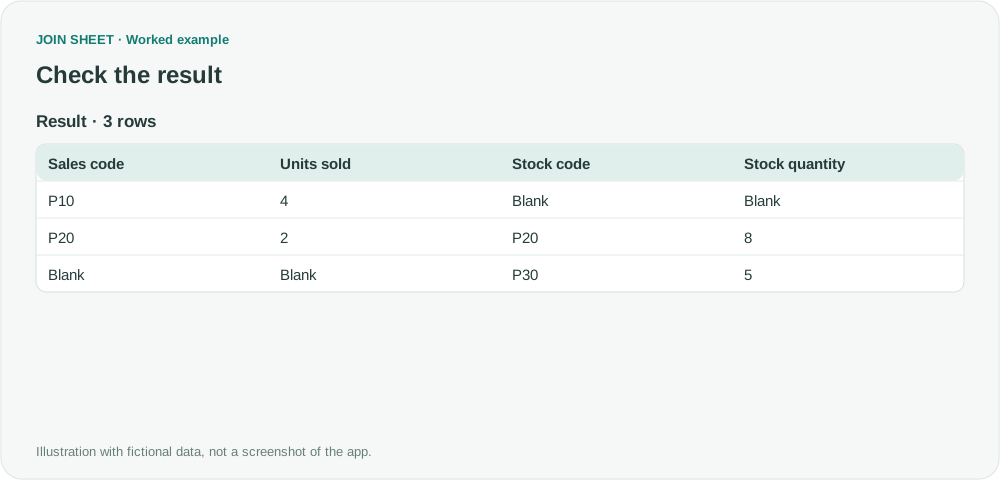
In this fictional example, Sales records four units of P10 and two of P20. Inventory records eight units of P20 and five of P30. A matching-only join would retain P20 but lose the sales-only P10 and inventory-only P30.
Joining the code columns puts each product's sales beside its stock quantity. If you only need to find missing codes, use Compare values. Appending the sheets would put the records below one another instead of producing this side-by-side report.
Keep both lists
- Use Add files to load Sales and Inventory. Place Sales on the left and Inventory on the right, and check the sheet names.
- Drag Sales code to Stock code using their side connection points.
- In Choose an operation, select All rows from both sheets.
- Check Sales code, Units sold, Stock code and Stock quantity in Result preview.
Check all three products, including the unmatched ones
| Sales code | Units sold | Stock code | Stock quantity |
|---|---|---|---|
| P10 | 4 | — | — |
| P20 | 2 | P20 | 8 |
| — | — | P30 | 5 |
The dash represents a blank. P10's blank stock quantity means Inventory has no matching P10 record. It does not tell you whether stock is zero; check the source before treating it as zero.
Why are there still two code columns?
The join keeps Sales code and Stock code as separate columns so you can see which file supplied each value. P30 appears only in Stock code. Review both code columns when checking the result.
When joining more files, choose a key column that actually contains the products you want to match. A product found only in a later file is not copied back into the first file's code column. For a report based on a complete product list, use that list as the starting sheet.
Repeated codes on both sides can also multiply matches. Check key uniqueness separately from whether unmatched rows have been preserved.
Try it with your own files
Start with JOIN SHEET ↗Use a desktop computer for Excel and CSV work.
Opens in a new tab without replacing your current work.
Example last verified:
Sources
Join two spreadsheets on a common column in Excel or OpenOffice — Stack Overflow
Joining two data sets together to create a combined table — Reddit r/excel
The sales and inventory data is a fictional example built around the problem discussed above.