
Join workbooks that use different Excel date systems
Match dates across workbooks that use Excel’s 1900 and 1904 date systems by importing the original XLSX files.
Excel can store the same calendar date as different serial numbers depending on the workbook's date system. Import each original XLSX separately so JOIN SHEET can use that metadata when interpreting its dates.
One date, two serial numbers
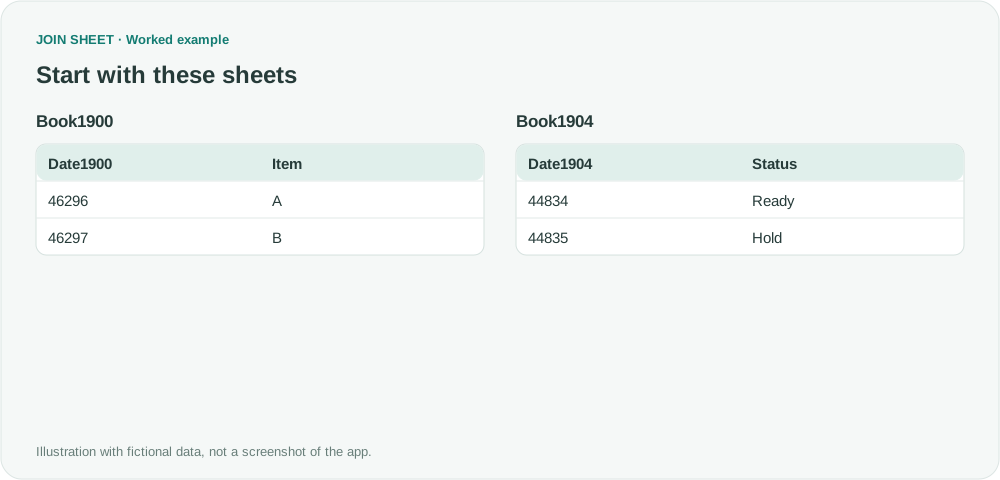
Book1900 uses the 1900 system and Book1904 uses the 1904 system. Both show October 1 and October 2, 2026 when formatted as dates in Excel. These example tables show the underlying serial numbers so you can see why a raw-number lookup fails; they are not app screenshots.
Book1900
| Date1900 | Item |
|---|---|
| 46296 | A |
| 46297 | B |
Book1904
| Date1904 | Status |
|---|---|
| 44834 | Ready |
| 44835 | Hold |
Import the original workbooks separately
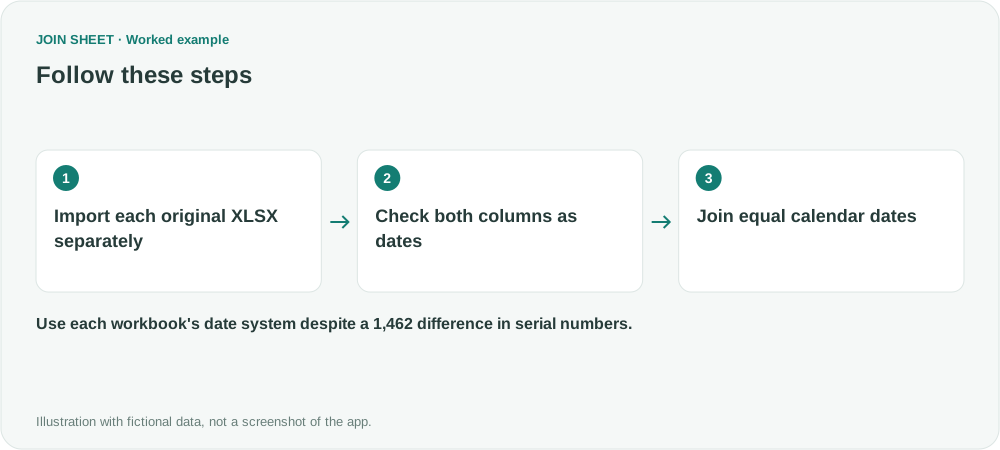
- Add the original 1900-system and 1904-system XLSX files separately. Copying raw serial numbers into another workbook or CSV would remove the context used in this example.
- Check Date1900 and Date1904 and set their types to ‘Date’. Confirm their displayed calendar dates against the originals.
- Place Book1900 on the left and Book1904 on the right. Connect Date1900 to Date1904 and choose ‘Matching rows only’.
- Check that Item and Status align on the same date. Do not add or subtract 1,462 again when the files have already been interpreted correctly.
Check that both dates match
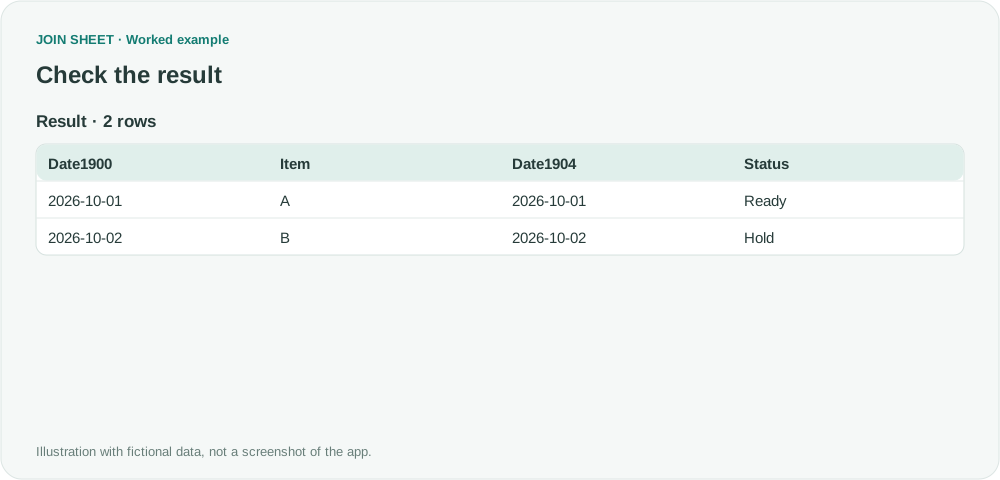
The two output rows pair A with Ready and B with Hold. Both date columns show the same calendar dates. The join compares interpreted dates, not the unequal raw serial numbers.
| Date1900 | Item | Date1904 | Status |
|---|---|---|---|
| 2026-10-01 | A | 2026-10-01 | Ready |
| 2026-10-02 | B | 2026-10-02 | Hold |
What if the dates are already wrong?
If someone copied the serial numbers without preserving the date system, or saved the shifted dates into a new file, you will need the original source to check the intended dates. Also check what an unformatted numeric column contains before setting its type to Date.
If the date itself is correct but one side includes a time, see joining dates with timestamps.
Try it with your own files
Start with JOIN SHEET ↗Use a desktop computer for Excel and CSV work.
Opens in a new tab without replacing your current work.
Example last verified:
Sources
I cant get the correct data in a vlookup because the dates in one file are from the 1904 system, and the dates in another file arent (Reddit r/excel)
The question describes a lookup across workbooks with different date systems and a roughly four-year shift. This example relies on original XLSX files that retain their own date-system metadata. The guide uses separately created fictional data.