
Calculate free-shipping and return percentages for each product category
Average each feature within a category, then multiply by 100. Overlapping features do not need to add up to 100%.
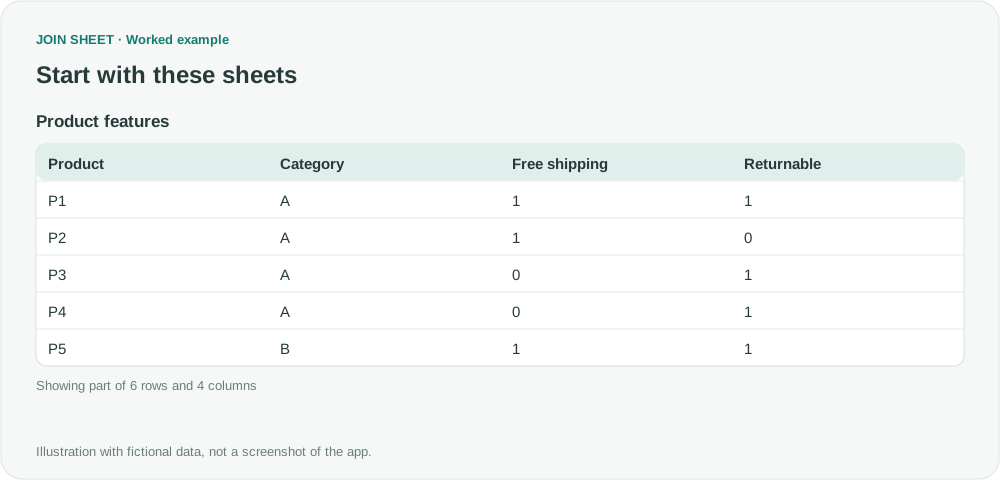
Calculate a separate percentage for free shipping and for returns, since one product can offer both. Prepare each feature as a column containing 1 for yes and 0 for no, then average each column in JOIN SHEET. Use the number of products as the basis for each percentage, not the combined number of features.
Count each product once
In this fictional table, 1 means the feature applies and 0 means it does not. Every state is known. An order-line table could repeat popular products and give them extra weight, so prepare a product-level list. Do not silently turn an unknown state into zero.
| Product | Category | Free shipping | Returnable |
|---|---|---|---|
| P1 | A | 1 | 1 |
| P2 | A | 1 | 0 |
| P3 | A | 0 | 1 |
| P4 | A | 0 | 1 |
| P5 | B | 1 | 1 |
| P6 | B | 1 | 1 |
Add a separate average for each feature
- Select Product features as the result source and add Summarize in Refine results.
- Select Category under Group by. Change the existing Summary method to Average, select Free shipping, and enter Mean free shipping flag in Output field name. Use Add summary in the same step, choose Average for Returnable, and name it Mean returnable flag.
- Add Calculate to multiply Mean free shipping flag by Fixed number 100. Name it Free shipping (%).
- Multiply Mean returnable flag by 100 in another calculation, name it Returnable (%), and choose Apply.
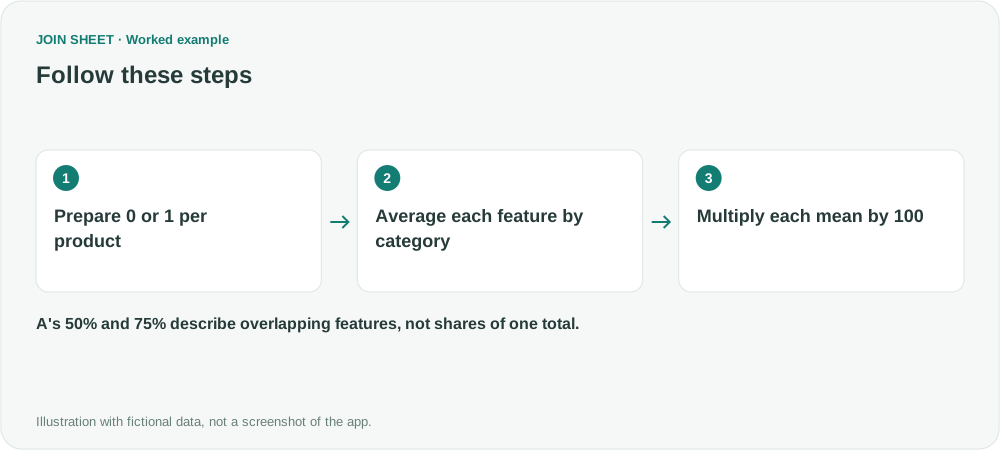
Category A has 50% free shipping and 75% returnable
Two of A's four products have free shipping; three allow returns. A combined 125% is not an error because the features overlap. Both of B's products satisfy both features, so each rate is 100%. The result 50 is already a percentage number; do not multiply it by 100 again.
| Category | Mean free shipping flag | Mean returnable flag | Free shipping (%) | Returnable (%) |
|---|---|---|---|---|
| A | 0.5 | 0.75 | 50 | 75 |
| B | 1 | 1 | 100 | 100 |
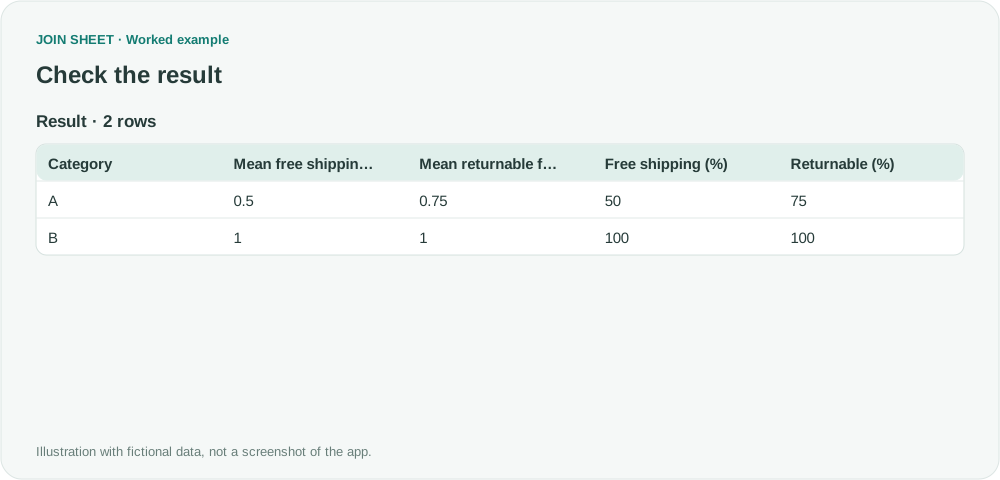
Blank values can be left out of an average, so the two percentages may end up counting different numbers of products. Decide how to handle unknown values before calculating. The source question also asks for a PivotChart; these steps produce the percentage table only.
Try it with your own files
Start with JOIN SHEET ↗Use a desktop computer for Excel and CSV work.
Opens in a new tab without replacing your current work.
Example last verified:
Sources
The question "clustered column" PivotChart using percentages instead of values - Excel 2010 asks about percentages for overlapping features. The product data here is a separate fictional example.