
Find missing items when each account type has different requirements
Check each account against the items its type requires. Find missing assignments even for accounts with no records at all.
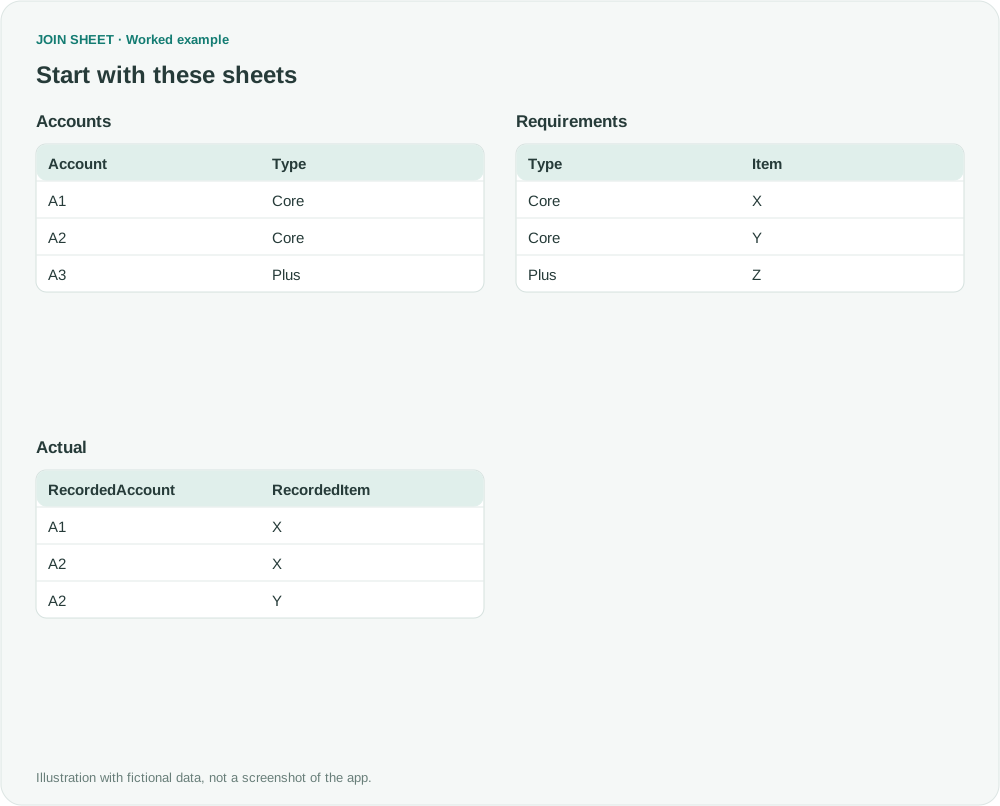
Start with the items each account should have. If Core accounts require X and Y, while Plus accounts require Z, join the account list to those requirements. Then compare the expected account and item pairs with the items actually assigned.
Include every account, even those with no assignments
The fictional Accounts table defines every account in scope. A3 must not disappear from the check merely because Actual has no A3 rows. Requirements defines required Items by Type; it is not a rule that every account needs every item. You will join Accounts to Requirements first and save the required account-item pairs as Expected before checking Actual.
In these tables, ∅ represents a blank cell; do not enter it as text.
Accounts
| Account | Type |
|---|---|
| A1 | Core |
| A2 | Core |
| A3 | Plus |
Requirements
| Type | Item |
|---|---|
| Core | X |
| Core | Y |
| Plus | Z |
Actual
| RecordedAccount | RecordedItem |
|---|---|
| A1 | X |
| A2 | X |
| A2 | Y |
Save expected pairs, then check actual records
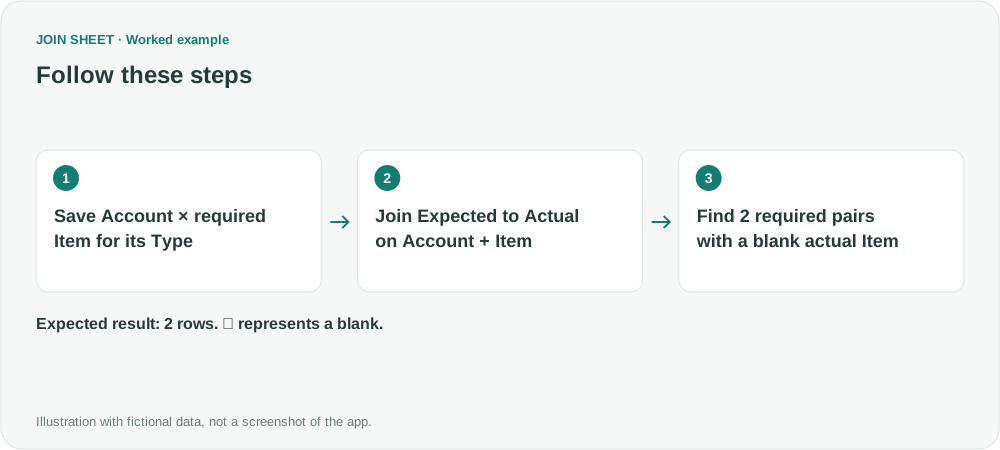
- Load Accounts and Requirements only. Join Type to Type with Matching rows only and hide Type from Requirements. Keep Account, Type and Item as the three output columns.
- Verify five rows in Result preview: A1–X, A1–Y, A2–X, A2–Y and A3–Z. Save them to Excel as Expected. This stage actually creates the rows that should exist.
- In a new workspace, load saved Expected and original Actual. Place Expected on the left. Connect Account → RecordedAccount and Item → RecordedItem, choosing All rows from the left sheet so both fields must match.
- Open Refine results and add Filter. Set Field to Actual's RecordedItem and Condition to Is empty, then choose Apply. This tests the blank created after joining; a source filter would run before that blank exists.
- Leave Account, Type, Item and both actual columns visible to inspect the missing-match evidence. Save the two missing pairs A1–Y and A3–Z.
Include accounts with no actual records
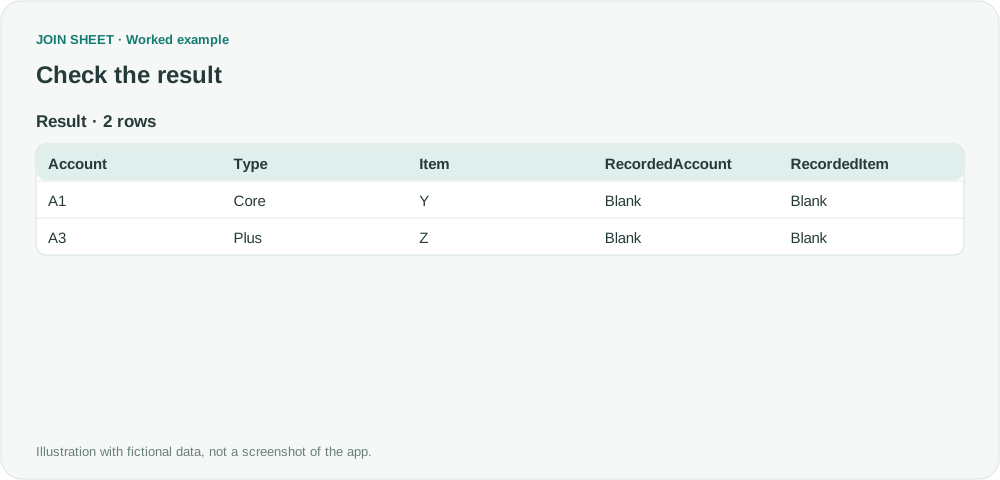
A1 has X but lacks Y. A3 has no actual records, yet its required Plus item Z is still reported. A2 has both X and Y and is excluded. Blanks on the right mean no actual match was found for the required pair, not that the requirement itself has no name.
| Account | Type | Item | RecordedAccount | RecordedItem |
|---|---|---|---|---|
| A1 | Core | Y | ∅ | ∅ |
| A3 | Plus | Z | ∅ | ∅ |
Separate missing rules from missing assignments
Keep one row per Account and fill in its Type. In Requirements, keep each Type+Item pair once and do not leave Item blank. Check that every account type has a rule: without one, the first join cannot produce the items that account should have. This workflow finds missing assignments, not extra or invalid ones. When accounts or requirements change, repeat the manual save and reload steps to rebuild Expected.
Try it with your own files
Start with JOIN SHEET ↗Use a desktop computer for Excel and CSV work.
Opens in a new tab without replacing your current work.
Example last verified:
Sources
How to validate completeness of one list against another (Reddit r/excel)
This question asks how to check assigned items against requirements for each account type. The accounts and assignments here are fictional and are not the author's data or product feedback.