
How do I filter codes that end with an asterisk?
Use the source-column Ends with filter to match * as a literal final character, keeping A* and B* without treating * as a wildcard.
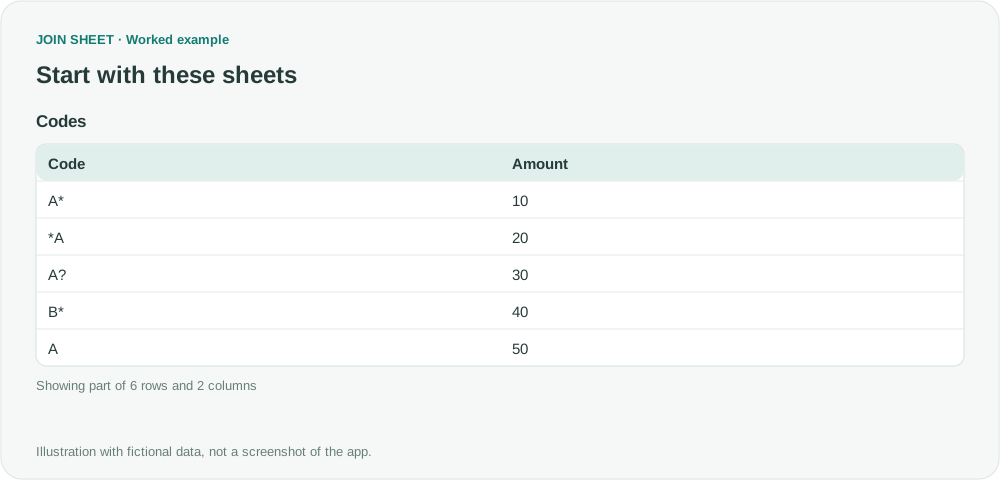
If searching for an asterisk selects everything, the filter may be treating it as a wildcard. In JOIN SHEET, open the source column's Ends with filter and enter a single *. This looks for the asterisk character at the end of a value.
Codes with stars in different positions
The fictional Codes table includes A* and B*, a leading star in *A, a question mark in A?, plain A, and a blank code. We want only the two rows whose final character is an asterisk.
The symbol ∅ represents a blank cell, not text to type.
Codes
| Code | Amount |
|---|---|
| A* | 10 |
| *A | 20 |
| A? | 30 |
| B* | 40 |
| A | 50 |
| ∅ | 60 |
Set Ends with on the source column
- Import Codes and check that Code is ‘Text’.
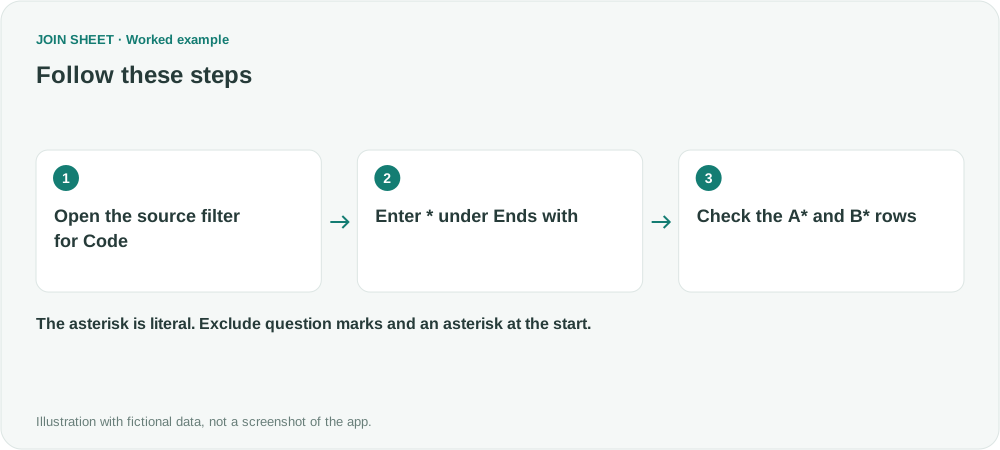
- Open the filter icon for Code on the source sheet card. Use this source-column condition, not the filter inside ‘Refine results’.
- Choose ‘Ends with’ and enter only
*as the value. Do not add quotation marks or a tilde. - Click ‘Apply’ and check the result. A* and B* stay; *A, A?, A, and the blank value are excluded.
Keep A* and B* only
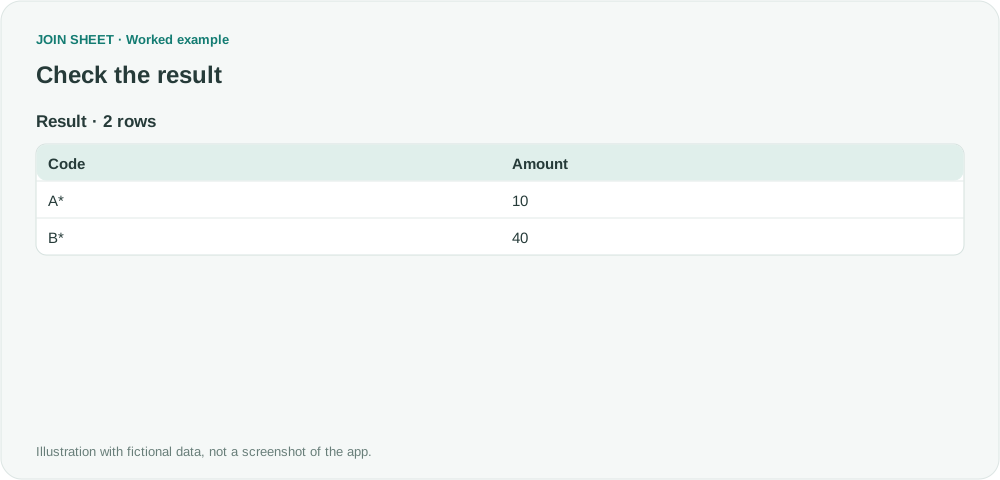
The two rows have Amount values 10 and 40. Although *A contains an asterisk, its last character is A, so it is excluded. The question mark in A? is a different literal character.
| Code | Amount |
|---|---|
| A* | 10 |
| B* | 40 |
Do not copy Excel's ~* escape here
Excel uses ~* in wildcard-aware contexts to request a literal star. Here that would request a tilde followed by a star at the end; use * instead. This filters rows and does not remove characters or rewrite codes.
Check whether the source contains spaces after the star before relying on the suffix.
Try it with your own files
Start with JOIN SHEET ↗Use a desktop computer for Excel and CSV work.
Opens in a new tab without replacing your current work.
Example last verified:
Sources
Filtering * and ? in a pivot table (Microsoft Community Hub)
The question asks how to filter a PivotTable for values ending in an asterisk. This guide uses fictional data to select the same kinds of rows with a JOIN SHEET source filter; it does not modify a PivotTable.