
Why did sales and shipment totals increase after a join?
Sum sales and shipments separately for each store, week and product, then join the totals to avoid counting the same quantities more than once.
A sale and a shipment are separate events, even for the same product. Joining repeated keys directly pairs each sales row with several shipment rows. First summarize each table to one row per store, week and product, then join the summaries.
How two sales and two shipments become four rows
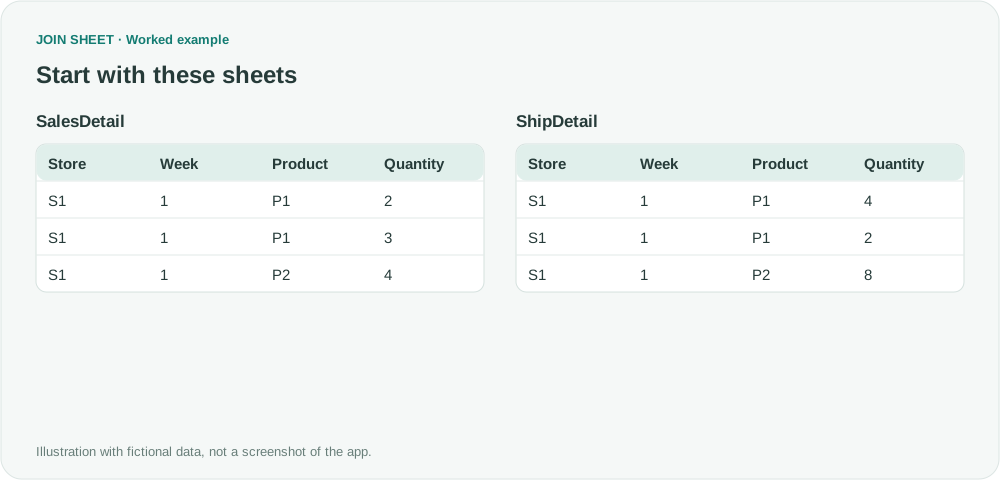
For store S1 in week 1, fictional product P1 has two sales records with quantities of 2 and 3. Its two shipment records have quantities of 4 and 2. Joining on Store, Week and Product pairs each sale with both shipments, creating four rows for P1. Adding those rows would give sales of 10 instead of 5 and shipments of 12 instead of 6.
SalesDetail and ShipDetail are the original records. SalesTotals and ShipTotals are the summaries you will create and save separately before joining.
SalesDetail
| Store | Week | Product | Quantity |
|---|---|---|---|
| S1 | 1 | P1 | 2 |
| S1 | 1 | P1 | 3 |
| S1 | 1 | P2 | 4 |
ShipDetail
| Store | Week | Product | Quantity |
|---|---|---|---|
| S1 | 1 | P1 | 4 |
| S1 | 1 | P1 | 2 |
| S1 | 1 | P2 | 8 |
SalesTotals
| Store | Week | Product | SalesTotal |
|---|---|---|---|
| S1 | 1 | P1 | 5 |
| S1 | 1 | P2 | 4 |
ShipTotals
| Store | Week | Product | ShipTotal |
|---|---|---|---|
| S1 | 1 | P1 | 6 |
| S1 | 1 | P2 | 8 |
Save the two summaries independently
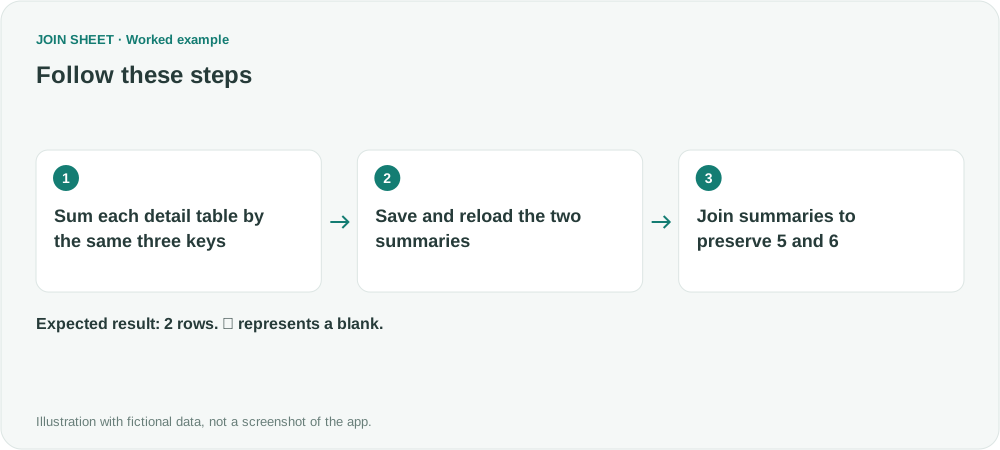
- Load and select SalesDetail alone. Open Refine results and add Summarize. Select Store, Week and Product one at a time under Group by. Change Summary method to Sum, select Quantity, and enter SalesTotal in Output field name. Choose Apply and Save results.
- In a separate workspace, load and select ShipDetail alone. Add Summarize with the same three grouping fields. Change the method to Sum for Quantity and enter ShipTotal as the output name. Choose Apply and Save results. Do not join the detail tables first.
- Start a new workspace with the saved SalesTotals and ShipTotals. Connect Store, Week and Product so all three conditions must match.
- Place SalesTotals on the left and ShipTotals on the right, then choose All rows from the left sheet. Hide the duplicate key columns from ShipTotals while retaining both totals.
- Verify that P1 shows 5 and 6. Each summary must have exactly one row per three-field key.
Check totals against the source
The totals remain 9 sales units and 14 shipment units. Summarizing after the detail join would add already-repeated values and would not preserve those totals.
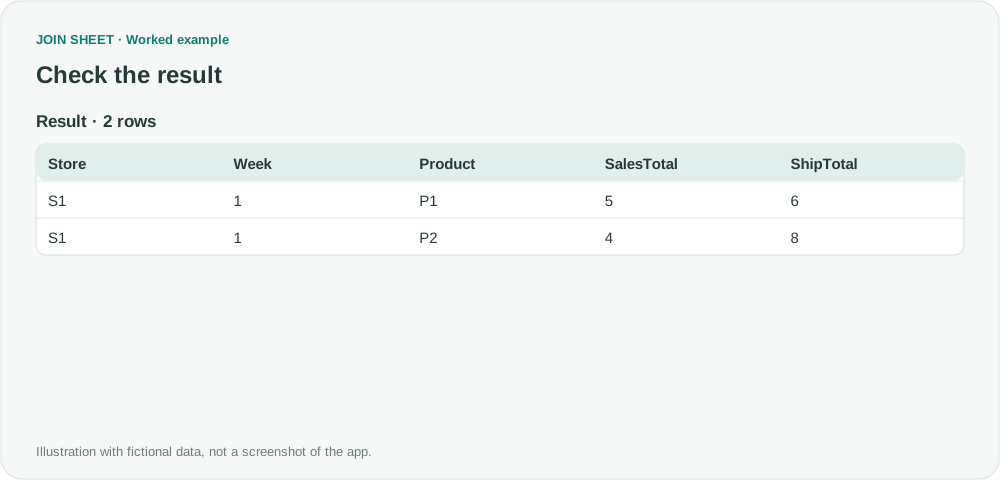
| Store | Week | Product | SalesTotal | ShipTotal |
|---|---|---|---|---|
| S1 | 1 | P1 | 5 | 6 |
| S1 | 1 | P2 | 4 | 8 |
Decide which records the report needs
This example keeps every store-week-product combination in the sales summary but leaves out combinations that appear only in shipments. To include those too, keep all rows from both summaries and check the key columns on both sides. The summaries no longer contain individual transactions. If you need to match those, use a shared transaction ID or other columns that identify each transaction. Reload and summarize changed source files; saved summaries do not update automatically.
Try it with your own files
Start with JOIN SHEET ↗Use a desktop computer for Excel and CSV work.
Opens in a new tab without replacing your current work.
Example last verified:
Sources
Merging Two Tables in Power Query When expanding it returns more values (Reddit r/excel)
The question reports inflated shipped quantities after joining sales and shipment details by store, week and product. The tables and workflow are a separately created fictional example inspired by this question, not the author's data or a product testimonial.