
Find stock shortages against each item’s own target
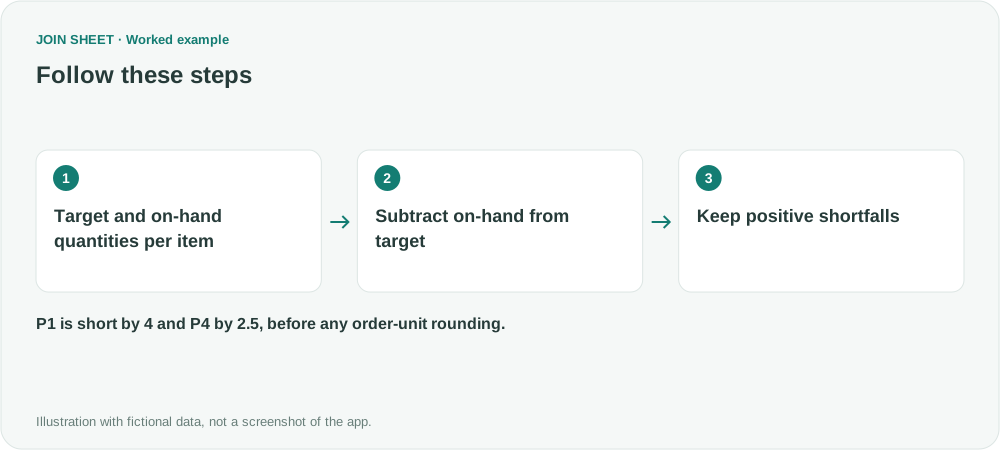
Subtract on-hand quantity from each item's target and keep positive differences. A shortfall is not necessarily the final purchase quantity.
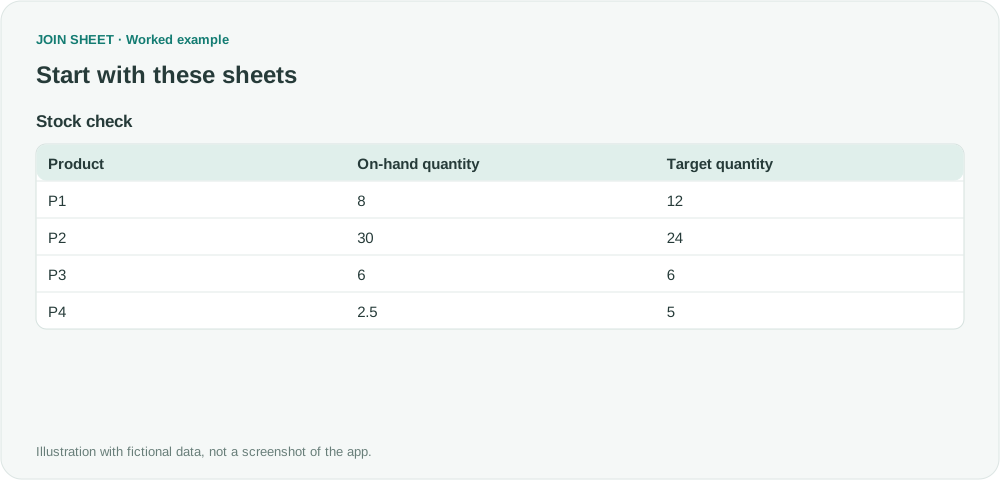
When products have different stock targets, one filter such as stock below 10 will miss some shortages and flag others incorrectly. Subtract each product's on-hand quantity from its own target, then keep the positive results.
Use matching quantity units
This fictional input has one row per item. Both quantity columns use the same unit. Do not subtract cases from individual pieces without conversion. A blank quantity does not establish zero stock and should be checked first.
| Product | On-hand quantity | Target quantity |
|---|---|---|
| P1 | 8 | 12 |
| P2 | 30 | 24 |
| P3 | 6 | 6 |
| P4 | 2.5 | 5 |
Calculate the difference, then keep positive rows
- Select Stock check as the result source and add Calculate in Refine results.
- Choose Subtract · A − B. Set First value (A) to Target quantity and Second value (B) to On-hand quantity, then enter Shortfall in Output field name.
- After the calculation, add Filter for Shortfall greater than 0.
- To review the largest shortages first, add Sort on Shortfall in descending order. Choose Apply to see the result.
Stock exactly at target does not qualify
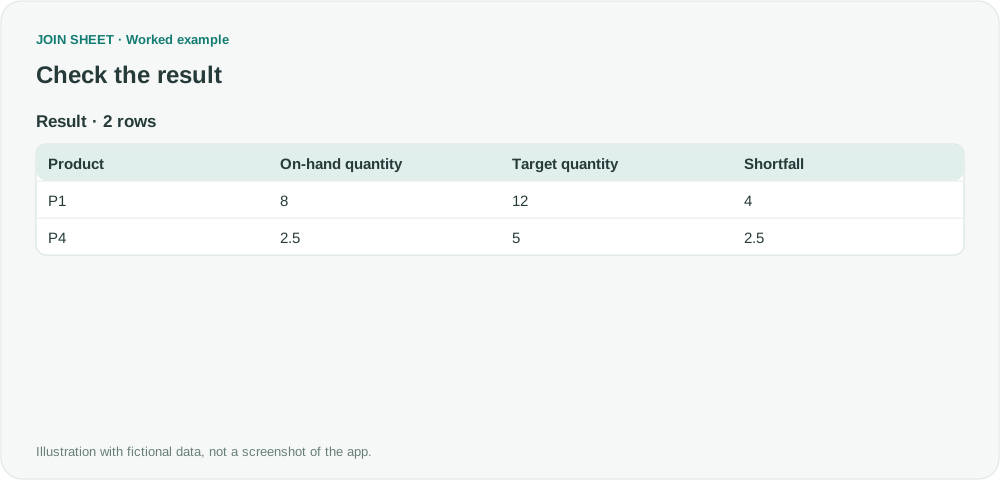
P1 remains because 12 − 8 = 4. P4 remains with 5 − 2.5 = 2.5. P2 exceeds its target and P3 exactly meets it, so both are excluded. Using greater than or equal to zero would also include P3, which has no shortage.
| Product | On-hand quantity | Target quantity | Shortfall |
|---|---|---|---|
| P1 | 8 | 12 | 4 |
| P4 | 2.5 | 5 | 2.5 |
P4's shortage is 2.5 before rounding. Whether to order three pieces or a full case depends on your ordering rules. This example does not perform the order-unit rounding discussed in the source question, account automatically for incoming stock, reservations or lead times, or generate purchase orders.
Try it with your own files
Start with JOIN SHEET ↗Use a desktop computer for Excel and CSV work.
Opens in a new tab without replacing your current work.
Example last verified:
Sources
The question Excel formula is stock sheet informed this independently created fictional example.