
Keep long identifiers intact when importing
Keep every digit of long account or order IDs by importing the original text values and matching them as Text.
Long account or order IDs can lose their final digits when stored as numbers. Import a file that still contains every digit, then set the ID columns to Text before joining. Changing the type after digits have been lost cannot restore them.
Two codes that differ at the end
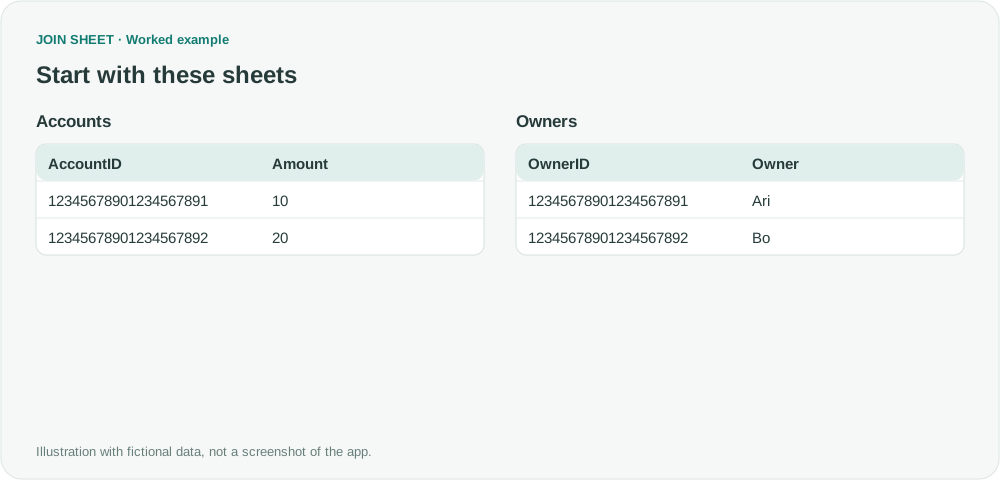
The fictional Accounts and Owners tables contain two 20-digit codes, ending in 891 and 892. They belong to Ari and Bo respectively. The original CSV contains every digit shown below, not an abbreviated scientific-notation value.
Accounts
| AccountID | Amount |
|---|---|
| 12345678901234567891 | 10 |
| 12345678901234567892 | 20 |
Owners
| OwnerID | Owner |
|---|---|
| 12345678901234567891 | Ari |
| 12345678901234567892 | Bo |
Check the original digits, then join as Text
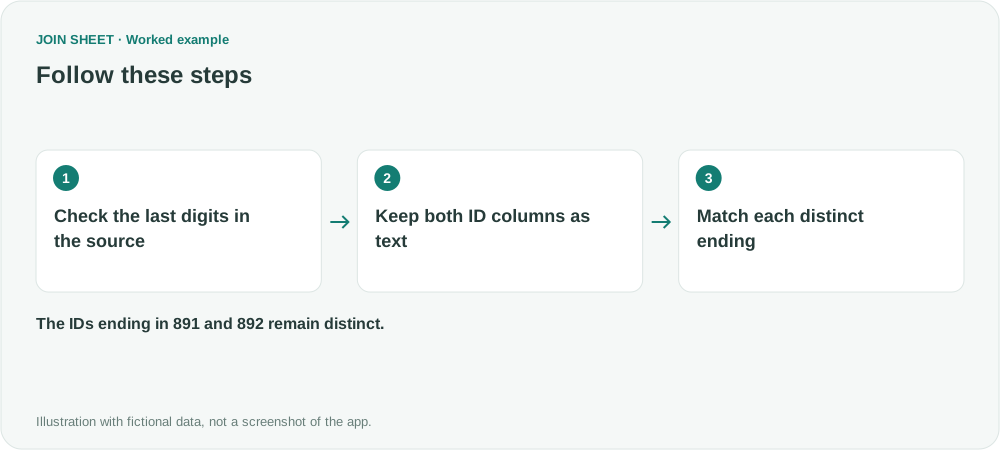
- Check the ID endings in the original CSV before opening and resaving it in Excel. Use the file that still contains the exact strings.
- Import Accounts and Owners. Open the type badge for AccountID and OwnerID and select ‘Text’ on both.
- Place Accounts on the left and Owners on the right. Connect AccountID to OwnerID and choose ‘Matching rows only’.
- Check the full ID strings alongside Owner. If you save the result to Excel, check that its IDs still contain all digits as text.
Two endings, two separate matches
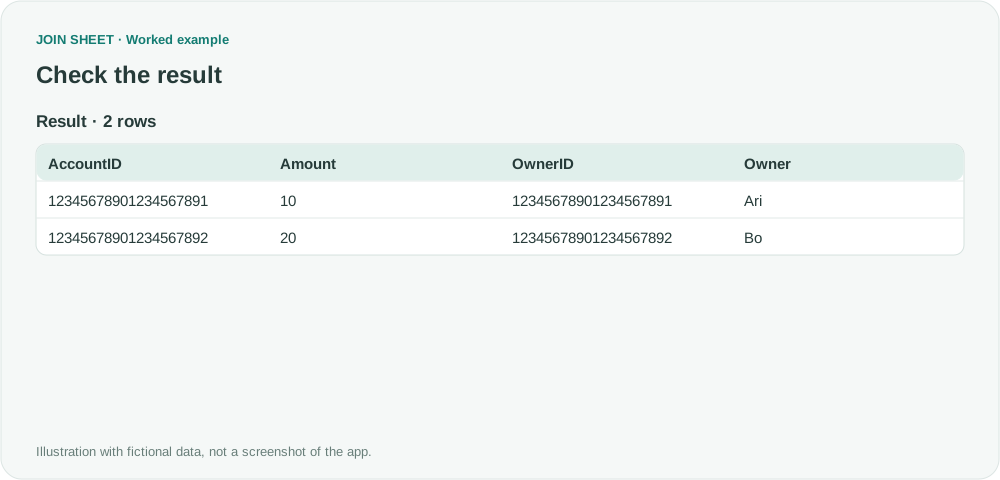
The result has two rows: the ID ending in 891 matches Ari, and the one ending in 892 matches Bo. If both IDs appear identical, stop and check the values stored in the original file.
| AccountID | Amount | OwnerID | Owner |
|---|---|---|---|
| 12345678901234567891 | 10 | 12345678901234567891 | Ari |
| 12345678901234567892 | 20 | 12345678901234567892 | Bo |
Rounded digits cannot be recovered
‘Text’ tells the app how to interpret the current value. It cannot recover digits already lost to numeric rounding or an abbreviated value saved in the file. Export those IDs again from a system that still has the originals.
An intact long integer string in a CSV is different from an Excel cell that already stores a rounded number. For identifiers with meaningful leading zeros, see matching codes with leading zeros.
Try it with your own files
Start with JOIN SHEET ↗Use a desktop computer for Excel and CSV work.
Opens in a new tab without replacing your current work.
Example last verified:
Sources
How to import long number from csv to excel without converting to scientific notation in VBA (Stack Overflow)
The question concerns long account numbers changing to scientific notation during a VBA import. This fictional example uses a CSV that still contains the complete IDs and shows how to keep them distinct during a join.