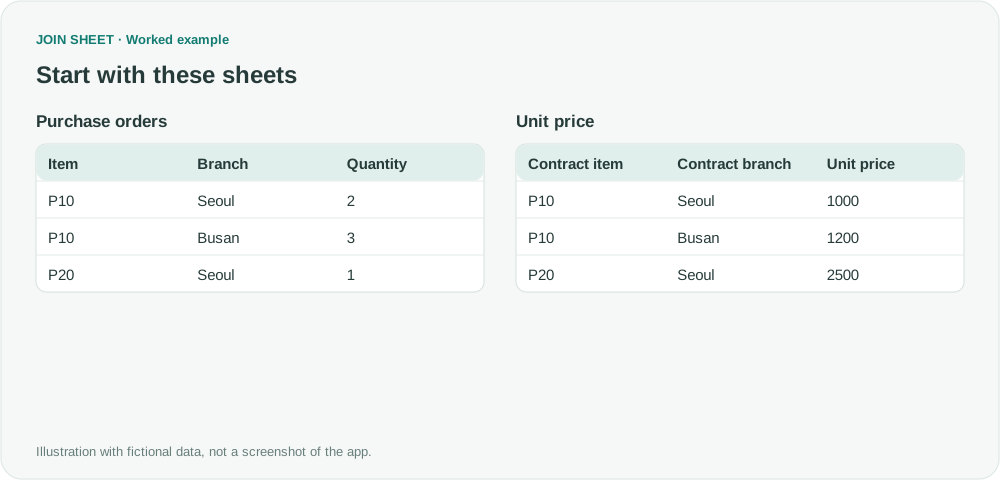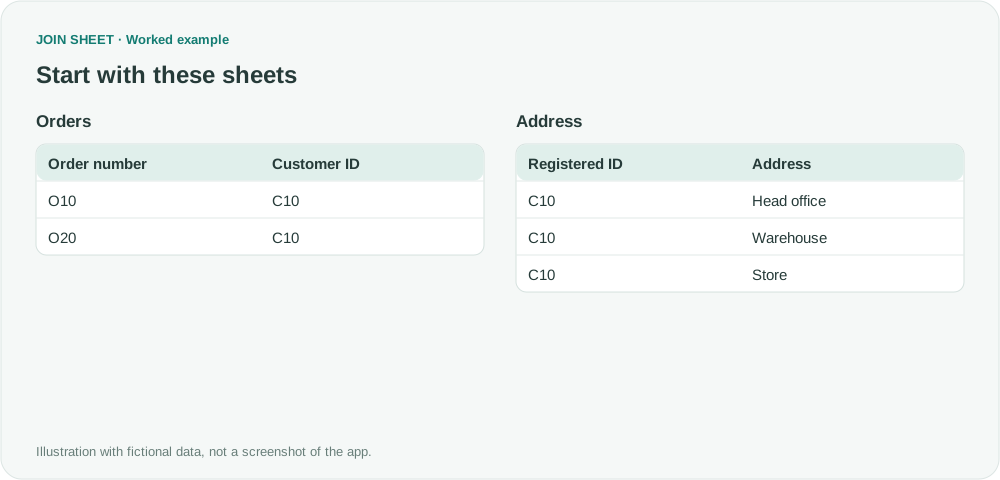

Look up a rate by company and amount range
Find the rate for an amount within a company’s price bands. Join by company, then keep the band whose lower and upper limits contain the amount.
If rates depend on an amount range, an exact match on the amount will not find the right rate. First join each record to the bands for its company. Then calculate its distance from each lower and upper limit, and filter for the band that contains it.
Decide which band includes a value on the boundary
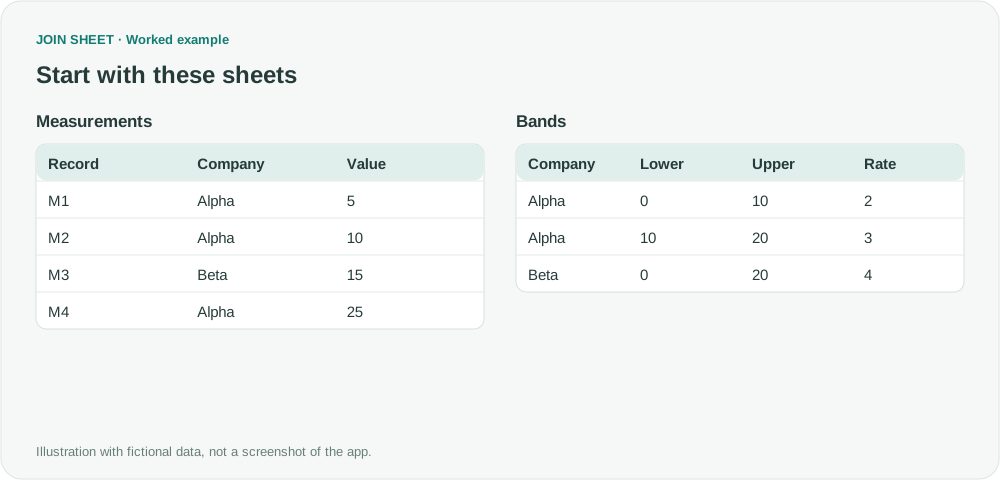
Each fictional Measurements record needs a Rate from Bands. Here, a band includes its Lower limit but excludes its Upper limit. Alpha's value 10 therefore falls in the band starting at 10 and ending before 20. Beta's value 15 must use a Beta rate, even if it also falls within an Alpha band.
Measurements
| Record | Company | Value |
|---|---|---|
| M1 | Alpha | 5 |
| M2 | Alpha | 10 |
| M3 | Beta | 15 |
| M4 | Alpha | 25 |
Bands
| Company | Lower | Upper | Rate |
|---|---|---|---|
| Alpha | 0 | 10 | 2 |
| Alpha | 10 | 20 | 3 |
| Beta | 0 | 20 | 4 |
Join by company, then calculate two differences
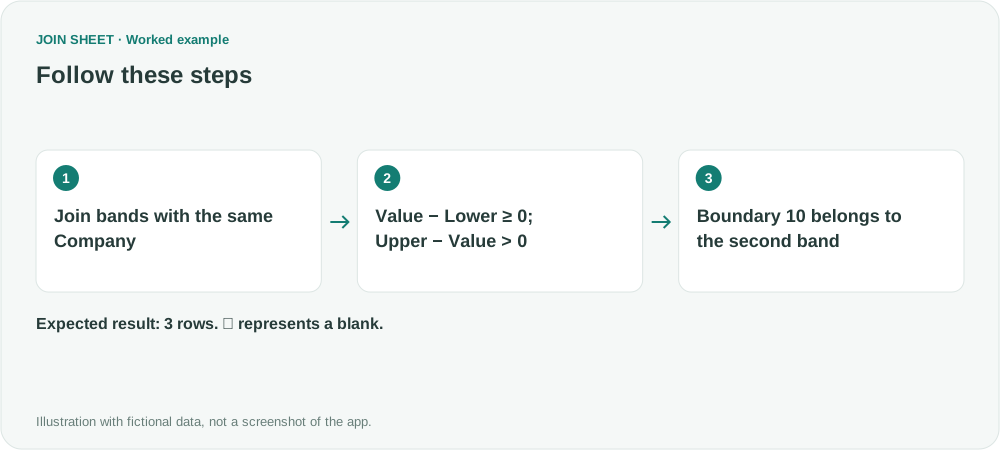
- Load both tables and join Company to Company with Matching rows only. Before filtering, three Alpha records × two Alpha bands plus one Beta record × one Beta band produce seven candidates.
- You may hide Company on Bands with its eye icon. Check that Value, Lower and Upper are numeric, and leave them visible for calculations.
- In Refine results → Calculate, choose Subtract · A − B. Use A=Value, B=Lower and name the result LowerGap. Add a second calculation with A=Upper, B=Value and name it UpperGap.
- Below both calculations, add two Filter steps: LowerGap, Greater than or equal to, 0; and UpperGap, Greater than, 0. Both conditions are needed for a lower-inclusive, upper-exclusive band.
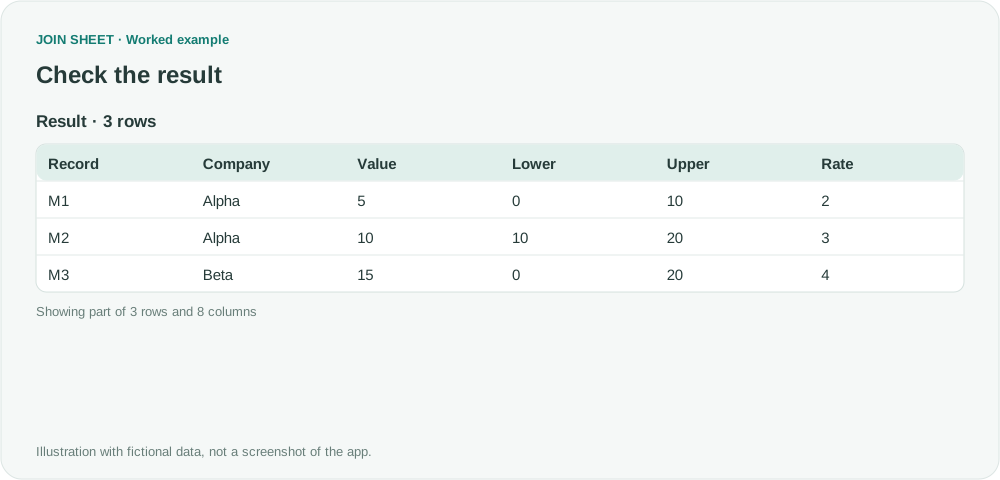
- Apply, check the three rows M1, M2 and M3 in Result preview, and save to Excel. LowerGap and UpperGap remain in the output for inspection.
M4 falls outside every candidate band
M2 remains in the second band, where LowerGap is zero. Its first-band candidate has UpperGap zero and is excluded. M4's value 25 exceeds both Alpha upper bounds, so it has no output row. This result does not separately retain unmatched measurements.
| Record | Company | Value | Lower | Upper | Rate | LowerGap | UpperGap |
|---|---|---|---|---|---|---|---|
| M1 | Alpha | 5 | 0 | 10 | 2 | 5 | 5 |
| M2 | Alpha | 10 | 10 | 20 | 3 | 0 | 10 |
| M3 | Beta | 15 | 0 | 20 | 4 | 15 | 5 |
Check overlaps and the number of possible matches
Before using larger files, estimate the initial matches as records × bands within each company. This example creates seven; larger tables can produce many more. Check that Lower < Upper and that a company's bands do not overlap, unless you want more than one rate per measurement.
To include both limits, use UpperGap ≥ 0 as well. A value on a shared boundary may then match two bands. Review blank and nonnumeric values separately, as they cannot pass these numeric tests.
Try it with your own files
Start with JOIN SHEET ↗Use a desktop computer for Excel and CSV work.
Opens in a new tab without replacing your current work.
Example last verified:
Sources
Index match a numerical value that appears between two columns (Reddit r/excel)
The question asks how to use a company and sales amount to return the profit value from the matching lower–upper interval. The tables and workflow are a separately created fictional example inspired by this question, not the author's data or a product testimonial.