
How many orders contain each pair of products?
Find which products appear together in orders. Count each pair once per order, even when an order lists the same product several times.
Join a product list to a second copy on OrderID to form pairs within each order. First reduce each order-product combination to one record. Then keep one direction of each distinct pair and count how many orders contain it.
Repeated lines are not extra orders
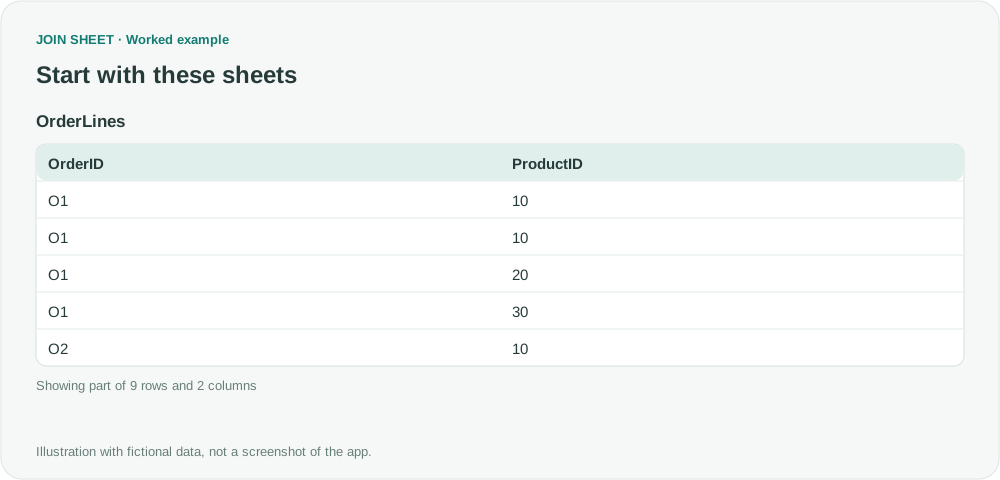
The fictional source has nine rows. ProductID uses numeric identifiers 10, 20 and 30 so the workflow can compare their order. Do not convert real product codes containing letters or significant leading zeros into numbers. Prepare a separate unique numeric identifier in the source if needed.
| OrderID | ProductID |
|---|---|
| O1 | 10 |
| O1 | 10 |
| O1 | 20 |
| O1 | 30 |
| O2 | 10 |
| O2 | 20 |
| O3 | 20 |
| O3 | 30 |
| O4 | 10 |
Product 10 appears twice in O1, but O1 still counts as only one order containing both 10 and 20. Buying more units does not increase the order count for that pair.
- Select the source table as the result base and open Refine results. Add Summarize, group by OrderID and ProductID, and count all records as LineCount.
- Click Apply and check that eight rows remain. Save the result, then load it as two inputs in a new workspace. This example names the worksheets Basket and Partner; rename worksheets in saved file copies yourself if needed.
- Join the two sheets on OrderID with Matching rows only. Use Basket as the result base. Keep ProductID from both inputs visible, and hide LineCount and Partner's OrderID.
Remove self-pairs and reversed duplicates
Add these steps in Refine results, in this order.
- Calculate Partner's ProductID minus Basket's ProductID and name the output ProductGap.
- Filter ProductGap to Greater than 0. A self-pair such as 10→10 has a zero difference. The reversed pair 20→10 has a negative difference, so only 10→20 remains.
- Add Summarize and select both ProductID fields under Group by. Keep Count and enter PairOrders in Output field name. Add one Sort step for Basket's ProductID, use Add sort field for Partner's ProductID, set both to Ascending, and click Apply.
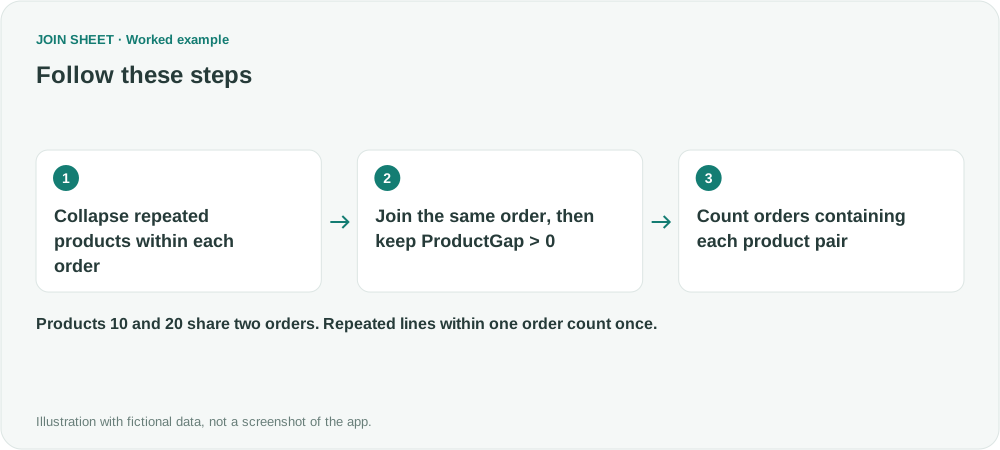
The intermediate join grows by the square of the distinct product count in each order. Here it produces 3²+2²+2²+1²=18 rows before the filter leaves five order-level pairs. Test a small period first if orders can contain many different products.
Read the order counts
| ProductID | Partner_ProductID | PairOrders |
|---|---|---|
| 10 | 20 | 2 |
| 10 | 30 | 1 |
| 20 | 30 | 2 |
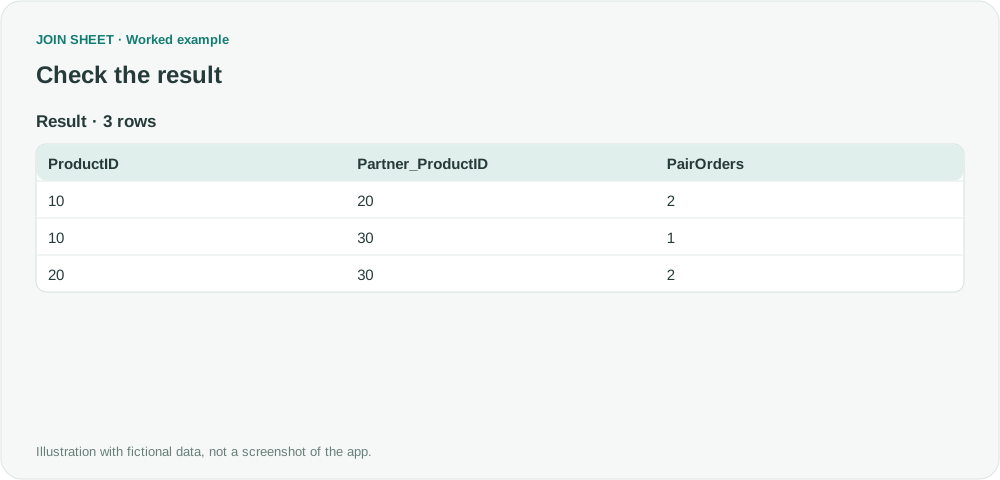
Partner_ProductID identifies the second product. Its display-name prefix can differ with the worksheet name. Products 10 and 20 occur together in O1 and O2; 20 and 30 occur together in O1 and O3. O4 contains only one product and contributes no pair.
If the counts are too high, check that the first summary kept only one row per order and product. The result tells you how often products were bought together in these orders. It does not predict purchase probabilities or show that recommending the pair would increase sales.
Try it with your own files
Start with JOIN SHEET ↗Use a desktop computer for Excel and CSV work.
Opens in a new tab without replacing your current work.
Example last verified:
Sources
How can I see in Excel which products were most often bought in pairs? inspired this independently created fictional example.