
Find the nearest numeric reference and keep ties
Find the closest reference number above or below each target. Compare squared differences and keep both references when they are equally close.
For a target of 9, both 8 and 10 are equally close. To keep both, calculate the squared difference between each target and every reference number. Find the smallest squared difference for each target, then join it back to the pairs to return all equally close matches.
The nearest value may be on either side
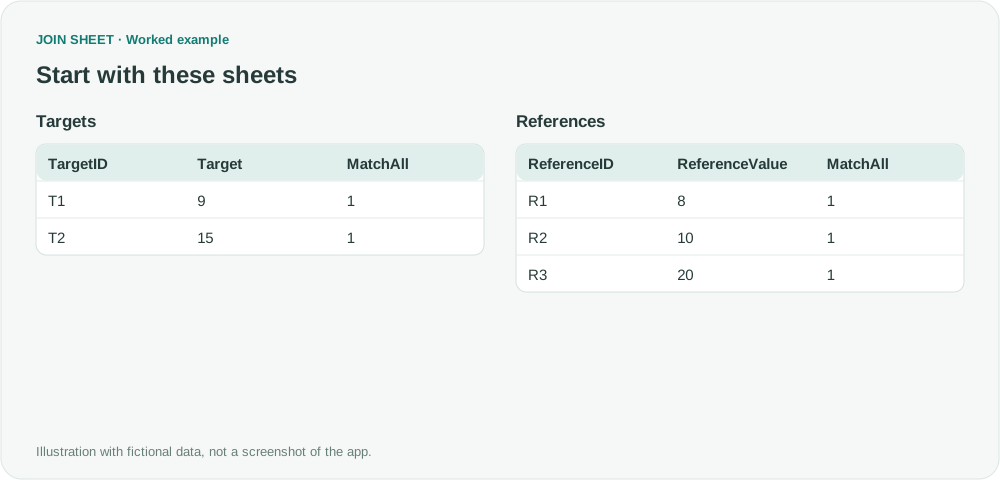
The fictional Targets table has two rows and References has three. Before import, manually fill MatchAll with numeric 1 in both tables. TargetID and ReferenceID must be unique within their sources. You will save two intermediate files: Candidates holds all six target-reference pairs and their differences; Minimums holds the smallest squared difference for each target.
Targets
| TargetID | Target | MatchAll |
|---|---|---|
| T1 | 9 | 1 |
| T2 | 15 | 1 |
References
| ReferenceID | ReferenceValue | MatchAll |
|---|---|---|
| R1 | 8 | 1 |
| R2 | 10 | 1 |
| R3 | 20 | 1 |
Save all pairs, then find the smallest difference for each target
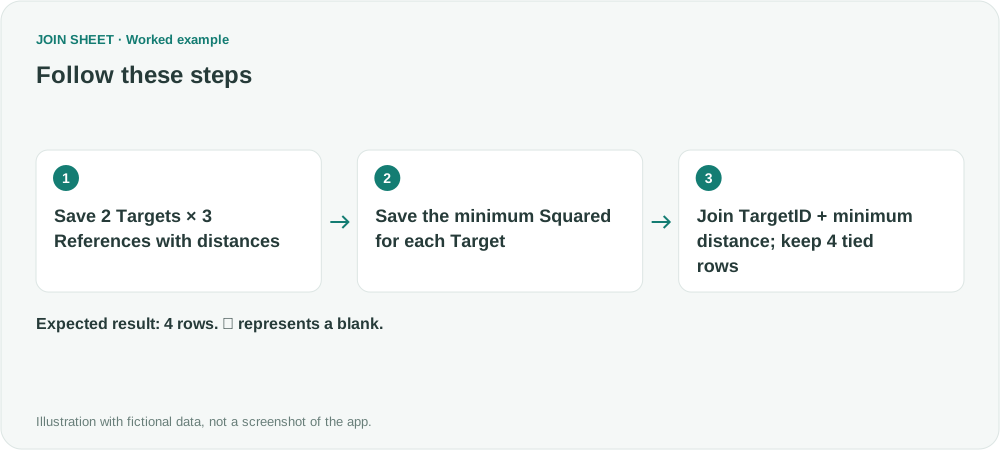
- Load Targets and References and join MatchAll to MatchAll with Matching rows only. This creates 2 × 3 = 6 candidates. Hide both MatchAll columns and verify that Target and ReferenceValue are numeric.
- In Refine results → Calculate, create Delta = ReferenceValue − Target. Add Multiply · A × B with Delta selected for both operands and name it Squared.
- Apply the two calculations and save all six rows to Excel as Candidates. Its columns are TargetID, Target, ReferenceID, ReferenceValue, Delta and Squared. Do not overwrite this full candidate file with the next summary.
- In the same workspace, add Summarize after the calculations. Group by TargetID and take the Minimum of Squared, named MinSquared. Apply and save the two rows T1=1 and T2=25 as a separate Minimums file.
- In a new workspace, load Candidates and Minimums. Connect TargetID to TargetID and Squared to MinSquared, then choose Matching rows only. Both the target ID and its squared difference must match, so only the closest reference pairs remain. Hide only TargetID from Minimums.
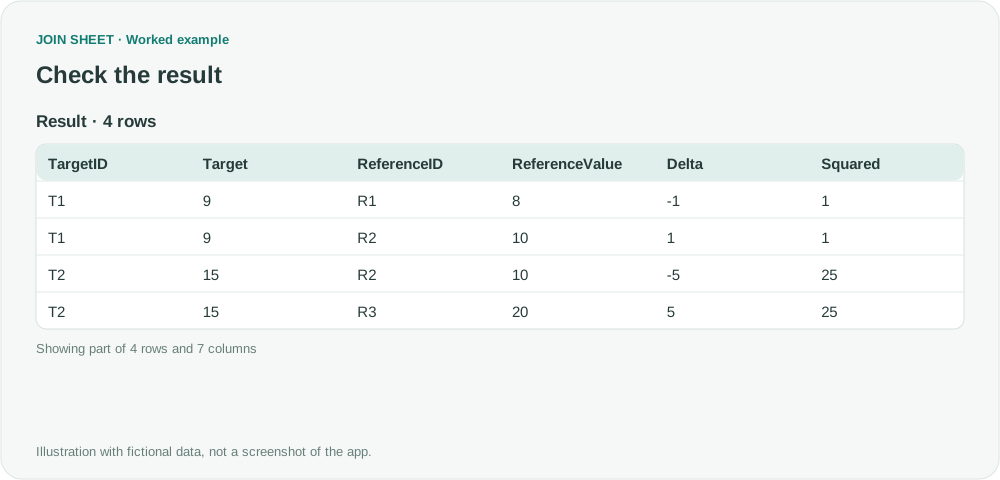
- Check four rows in Result preview: R1 and R2 for T1, and R2 and R3 for T2. Save the result. Saving, summarizing and reloading are separate manual stages.
Keep both references when distance is tied
Target 9 retains both 8 and 10; target 15 retains both 10 and 20. Squared is the squared distance, not the distance itself. Equal negative and positive differences have the same square, so a higher reference is not overlooked.
| TargetID | Target | ReferenceID | ReferenceValue | Delta | Squared | MinSquared |
|---|---|---|---|---|---|---|
| T1 | 9 | R1 | 8 | -1 | 1 | 1 |
| T1 | 9 | R2 | 10 | 1 | 1 | 1 |
| T2 | 15 | R2 | 10 | -5 | 25 | 25 |
| T2 | 15 | R3 | 20 | 5 | 25 | 25 |
Check candidate counts and numeric precision
The first join creates targets × references rows. That is only six here, but estimate the count before using larger files. Decide how to handle blanks and nonnumeric values before joining. With decimals or very large numbers, check both calculation precision and whether saved values import unchanged. If you need just one match, decide which reference should take priority in a tie; this workflow keeps every equally close match.
Try it with your own files
Start with JOIN SHEET ↗Use a desktop computer for Excel and CSV work.
Opens in a new tab without replacing your current work.
Example last verified:
Sources
Find nearest value like LOOKUP? (Reddit r/excel)
This question asks for the closest number on either side of an input. The target and reference values here are fictional, not the author's data or a review of JOIN SHEET.