
Keep every ID across three different source tables
Keep IDs that appear in only one of three tables. Make a complete, deduplicated ID list, then use it as the left sheet when joining each original table.
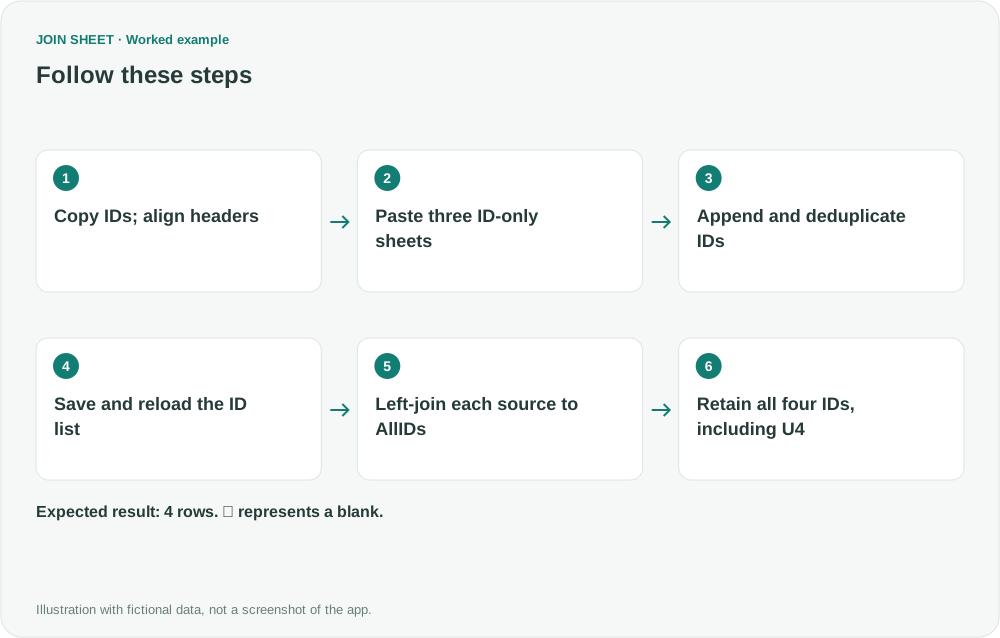
No single source table contains every ID in this example. First copy the ID column from each of the three tables, append those copies in JOIN SHEET and keep one copy of each ID. Save that complete list as Excel and reload it so it becomes a sheet you can join from. Use the list as the left sheet and join each original table with All rows from the left sheet. An ID then stays in the result even if only one original table contains it.
None of the source tables has every ID
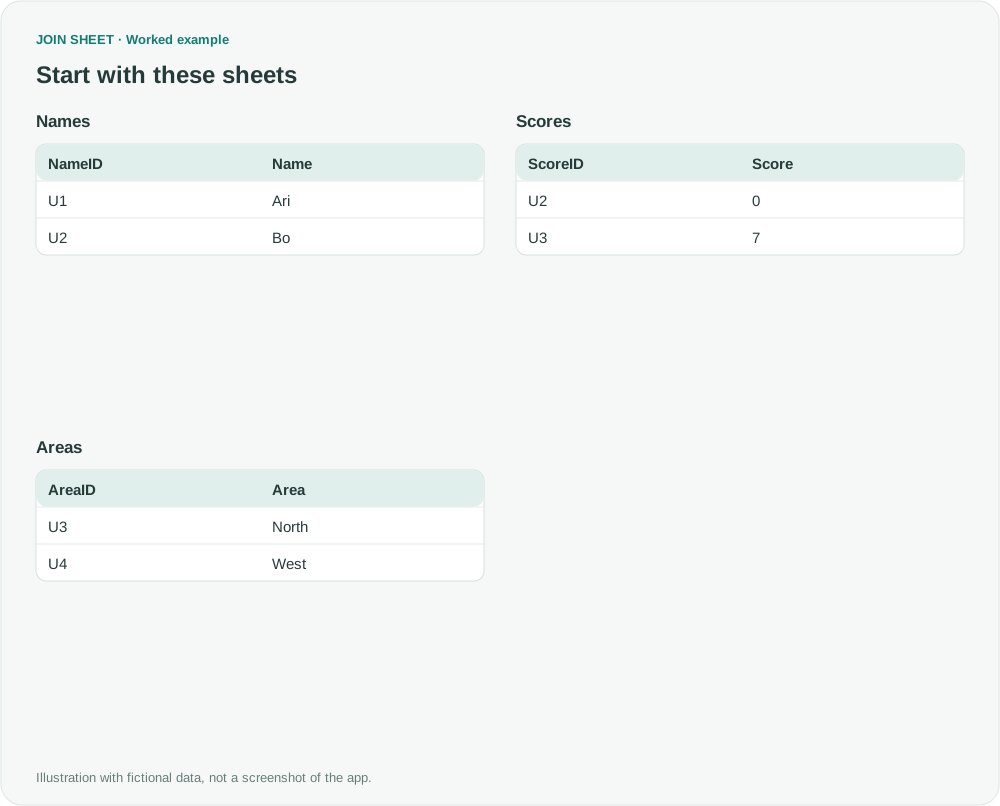
In this fictional example, Names has U1 and U2, Scores has U2 and U3, and Areas has U3 and U4. Each ID appears once within its source table, with no blank IDs. The complete list must include all four IDs, U1 through U4.
In these tables, ∅ represents a blank cell; do not enter it as text.
Names
| NameID | Name |
|---|---|
| U1 | Ari |
| U2 | Bo |
Scores
| ScoreID | Score |
|---|---|
| U2 | 0 |
| U3 | 7 |
Areas
| AreaID | Area |
|---|---|
| U3 | North |
| U4 | West |
Copy the ID columns and give them matching headers
In Excel or Google Sheets, copy NameID, ScoreID and AreaID into separate sheets, including their headers. Keep the originals and change each copied header to ID. Leave all ID values in place, including duplicates. This preparation selects the columns and aligns their headers; JOIN SHEET will combine the lists and remove duplicates.
| Sheet to create by pasting | Column name | Values to copy |
|---|---|---|
| NamesIDs | ID | U1, U2 |
| ScoresIDs | ID | U2, U3 |
| AreasIDs | ID | U3, U4 |
Create the unique ID list in JOIN SHEET
- Copy the prepared one-column table containing U1 and U2, including its ID header, and click “Paste copied data” in JOIN SHEET. Paste it and check that the preview has one ID column and two data rows. Enter NamesIDs in “Sheet name” and click “Create sheet.” Repeat with the prepared copies for ScoresIDs and AreasIDs.
- Click the NamesIDs sheet title to select it as the result base. Drag its bottom + point to the top + point on ScoresIDs. Connect the bottom + point on ScoresIDs to the top + point on AreasIDs.
- On each of the two connection lines, select “Keep one copy of identical rows.” With only the ID column present, matching IDs are identical rows. Including names, scores or areas would make deduplication depend on those values too.
- In “Result preview,” check the result based on NamesIDs. It should have one ID column with four rows: U1, U2, U3 and U4. The six input rows should lose one copy each of U2 and U3. The row order can differ.
The complete list below is called AllIDs in the remaining instructions; your saved file or imported sheet can have a different name.
| ID |
|---|
| U1 |
| U2 |
| U3 |
| U4 |
Save the list, reload it and join the original tables
- Click “Save results” to save the full ID list as an Excel file.
- Use “Add files” to load the saved ID list and the original Names, Scores and Areas tables. Place the ID list on the left and the three originals on the right. Before connecting them, click the saved ID-list sheet title to select it as the result base.
- Connect the right-side point of the ID column separately to the left-side points of NameID, ScoreID and AreaID. Select “All rows from the left sheet” on all three connections. Connecting each source directly to AllIDs preserves IDs even when a source has no matching record.
- In “Result preview,” check that “Result base sheet” names the saved ID list you loaded, and that the result contains U1 through U4. These connections form a separate group from the appended sheets used to create the ID list.
What to check in the result
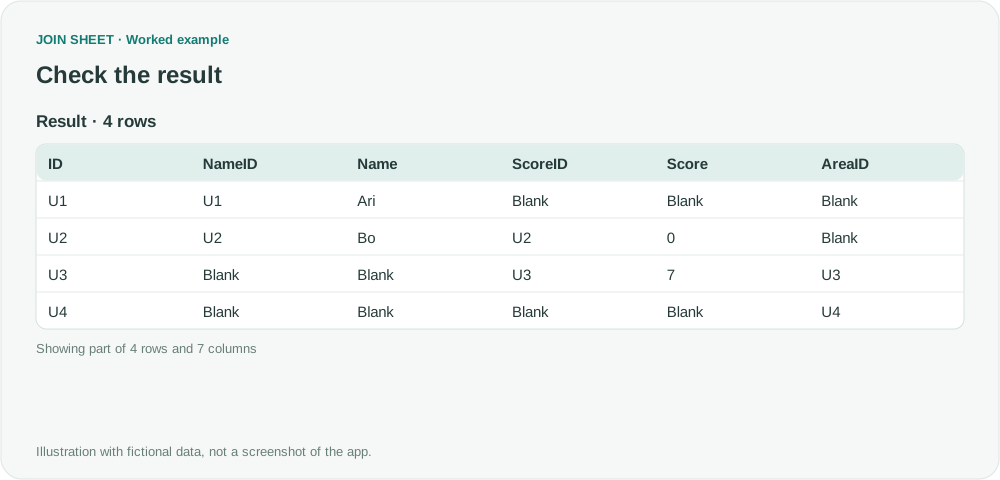
U4 remains with Area West even though Names and Scores do not contain it. U2 has Score 0; U1 has no score. U3 and U4 are the critical checks because a Names-based left join would omit them.
| ID | NameID | Name | ScoreID | Score | AreaID | Area |
|---|---|---|---|---|---|---|
| U1 | U1 | Ari | ∅ | ∅ | ∅ | ∅ |
| U2 | U2 | Bo | U2 | 0 | ∅ | ∅ |
| U3 | ∅ | ∅ | U3 | 7 | U3 | North |
| U4 | ∅ | ∅ | ∅ | ∅ | U4 | West |
Keep the ID list up to date
When the sources gain new IDs, repeat the append and duplicate-removal steps with the latest ID columns. Save the refreshed list and use it as the join base. If an ID is blank, first check which record it belongs to in the source. Repeated IDs in Names, Scores or Areas can produce extra result rows, so check whether those repeats are details you need to keep. Differently named source columns remain separate in the result.
Try it with your own files
Start with JOIN SHEET ↗Use a desktop computer for Excel and CSV work.
Opens in a new tab without replacing your current work.
Example last verified:
Sources
How do I merge 3 datasets into one, using a common ID variable that each dataset shares (Reddit r/excel)
This discussion asks how to merge three datasets without losing IDs missing from the first one. The sample data here is fictional and does not represent the question author's data or a JOIN SHEET review.