
How do I rank scores within each group without gaps after ties?
Give tied scores the same rank, then continue with the next number. Build a list of score levels for each group and use it to calculate a dense rank.
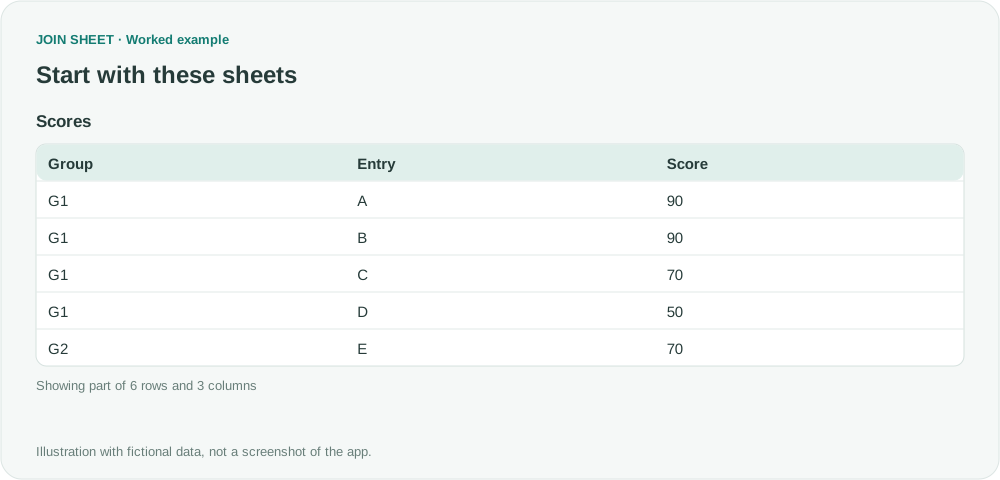
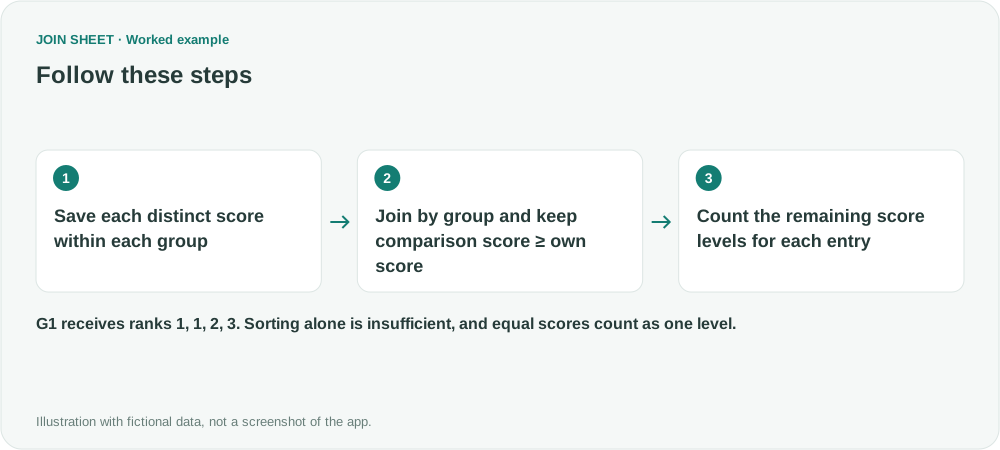
A dense rank numbers ties without leaving a gap afterward: 1, 1, 2, 3. In JOIN SHEET, first build a distinct score list for each group. For every original entry, count how many score levels in its group are at least as high as its score. This is a multi-step calculation, not a dedicated rank or automatic row-number feature.
Identify entries within their groups
Higher scores rank better in this fictional example. Entry must uniquely identify each record within Group. Two people with the same name need separate identifiers; otherwise the later summary could combine them.
| Group | Entry | Score |
|---|---|---|
| G1 | A | 90 |
| G1 | B | 90 |
| G1 | C | 70 |
| G1 | D | 50 |
| G2 | E | 70 |
| G2 | F | 50 |
Both 90-point entries in G1 rank first, and its 70-point entry ranks second. E also scores 70, but ranks first within G2. Sorting the entire table does not create that group-specific rank column.
Keep one record for each score level
- Load Scores, check that Score is numeric, and select it as the result base. Exclude blank scores from both the original records and the list of score levels.
- In Refine results, add Summarize with Group and Score as the grouping fields. Count all records as Occurrences and click Apply. Check these five rows.
- Click Save results and load the saved Excel file as Levels. This makes the five-row summary available as a separate sheet for the next join. Occurrences helps check the grouping but is not used in the final rank calculation.
| Group | Score | Occurrences |
|---|---|---|
| G1 | 90 | 2 |
| G1 | 70 | 1 |
| G1 | 50 | 1 |
| G2 | 70 | 1 |
| G2 | 50 | 1 |
Count levels at or above each entry
Start a new workspace with Scores and Levels. Join the two sheets on Group with Matching rows only, using Scores as the result base. Hide Levels' duplicate Group and its Occurrences field, but keep its Score visible.
In Refine results, add these steps in order.
- Calculate Levels' Score minus the original Score as ScoreGap. The second score is displayed as Levels_Score in this example because the column names overlap.
- Filter ScoreGap to Greater than or equal to 0. Including an equal score ensures that the highest score receives rank 1.
- Summarize by the original Group, Entry and Score, counting all records as DenseRank.
- Add one Sort step with Group, then use Add sort field for DenseRank and Entry in that order. Set all three to Ascending and click Apply.
Tied entries receive the same number
| Group | Entry | Score | DenseRank |
|---|---|---|---|
| G1 | A | 90 | 1 |
| G1 | B | 90 | 1 |
| G1 | C | 70 | 2 |
| G1 | D | 50 | 3 |
| G2 | E | 70 | 1 |
| G2 | F | 50 | 2 |
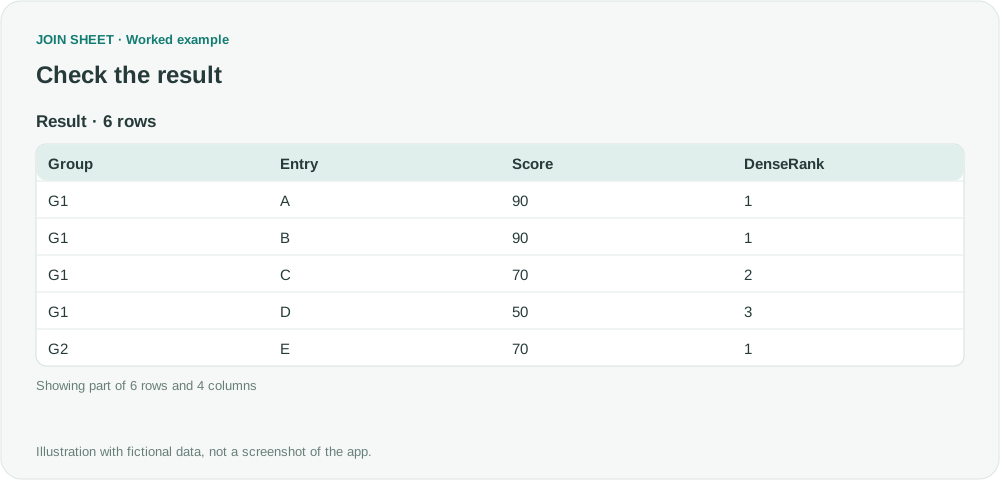
D scores 50 in G1. There are three distinct levels at or above it, 50, 70 and 90, so it ranks third. If the score-level list counted A and B's score of 90 twice, D would incorrectly rank fourth. Check that the first summary groups by Group and Score only.
The join pairs every original entry with every distinct score in its group. That makes 4×3+2×2=16 intermediate rows in this example, and many more in a large group. Try a small dataset first; for large datasets, consider a tool with a dedicated ranking function. Tied entries receive the same rank, so you still need a separate rule if their order matters.
Try it with your own files
Start with JOIN SHEET ↗Use a desktop computer for Excel and CSV work.
Opens in a new tab without replacing your current work.
Example last verified:
Sources
How To Effectively Dense Rank Groups in a Table Using Powerquery inspired this independently created fictional example.